Screenshot guides
How to remove an object from a screenshot
Use an erase tool on a copy of the screenshot, select a small distraction and inspect the rebuilt area at native pixels. For private information, use deliberate redaction rather than judging success by how natural the edit looks.

On this page
Decide whether the detail should be removed
A temporary badge may distract from an example interface. An error message may be the evidence the recipient needs. Before editing, decide what the screenshot is meant to show and keep an untouched original. If you can make a clearer capture by excluding the detail, that is often the most faithful option. If the purpose is hiding a name, credential or account detail, follow the redaction workflow and review the exact file you will share.
Choose the right editing job
| Goal | Useful route | What to inspect |
|---|---|---|
| Remove a small visual distraction | Erase a tight region | Continuity of nearby lines, color and texture |
| Conceal private information | Crop it out or use an opaque cover | Complete coverage in the exported file |
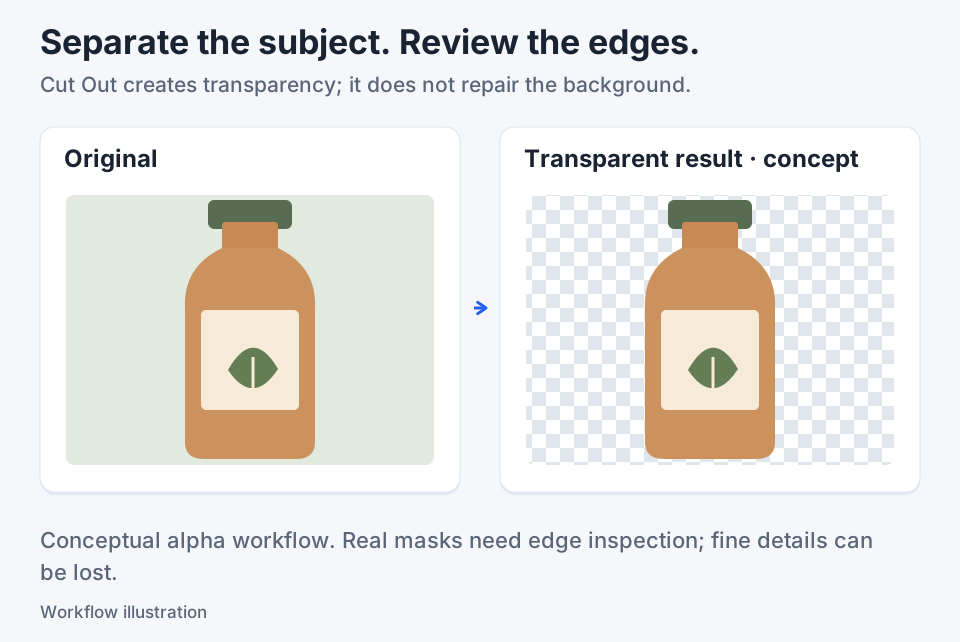
| Keep a subject with transparency | Remove background | The subject's alpha outline |
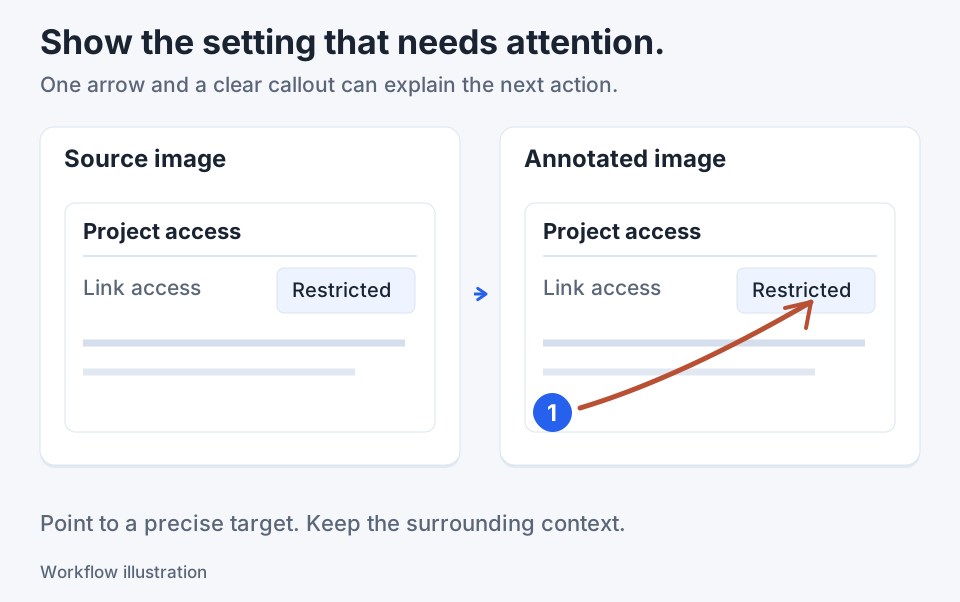
| Correct an annotation you added | Select, move, edit or delete that annotation | The original screenshot remains intact |
Erase a small region in Klips
Start with a copy of the source image in the editor. Work on one distraction at a time so you can see which edit changed the result.
- Choose Erase in the tool picker. For a general object, use the area mode rather than Text only.
- Drag a tight rectangle around the object, including its visible boundary. Keep unrelated nearby controls outside it.
- Wait for processing, then inspect the result at 100% and at the intended reading size.
- Use Undo if a line bends, a texture repeats or the wrong detail disappears. Retry a smaller or more suitable region.
- Save a separate PNG or JPEG copy when the result is useful. Keep the untouched source if the image may need later review.
Worked example: remove a temporary badge
Imagine a practice settings panel with a small temporary badge on an otherwise plain background. The intended output is the same panel without that badge, while the divider and button beside it remain unchanged. Erase only the badge area, then compare the divider on both sides of the edit. If the reconstructed panel introduces a seam or damages the button, undo it. This example defines a useful check; it does not promise a flawless reconstruction on every panel.
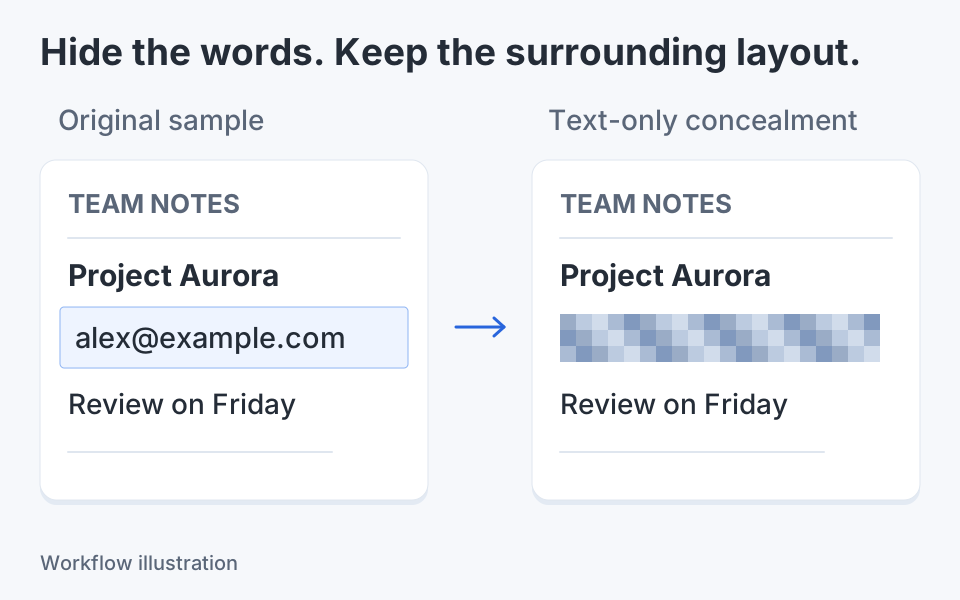
Use Text only for a label, not a whole panel
If the distraction consists of text, choose Text only before dragging the region. Klips uses local OCR to target recognized word boxes inside that area. The surrounding pixels can remain outside the effect, which is useful when a label sits near a border or icon. Recognition depends on the image and installed Windows OCR languages. Inspect every word you intended to remove; a small or low-contrast character can be missed. For sensitive content, an attractive cleanup is not a confidentiality guarantee.
Know when to stop reconstructing
A photograph, patterned surface or gradient crossed by several lines gives an erase algorithm a harder problem than a simple panel. Reconstruction estimates a plausible replacement from image context. It cannot establish what was actually behind the object. If the result matters as evidence, prefer a new capture, a transparent explanation of the edit or a simple crop. Adobe documents object-removal workflows for Photoshop, but that does not establish equivalent algorithms or results in Klips.
Adobe's object-removal documentation describes that separate photo-editing workflow.
Check the file, not only the editor
Reopen the exported copy in an image viewer. Inspect the edited boundary, nearby text and any repeated pattern. Then view the whole screenshot: did removing the object change its meaning, or make the instructions harder to follow? Add explanatory annotations after the image cleanup so they can remain easy to adjust during the final editing session. Undo is useful while you work, but the exported image is a flattened result rather than a record of your editing decisions.

Keep the next screenshot in one workflow.
Capture the detail. Add a clear annotation. Copy text, measure spacing or keep a reference on screen.
Sources and review
Product details and external commands are referenced below. Klips publishes these guides and comparisons; worked examples and illustrations explain a workflow.