Screenshot guides
How to crop and copy part of a screenshot
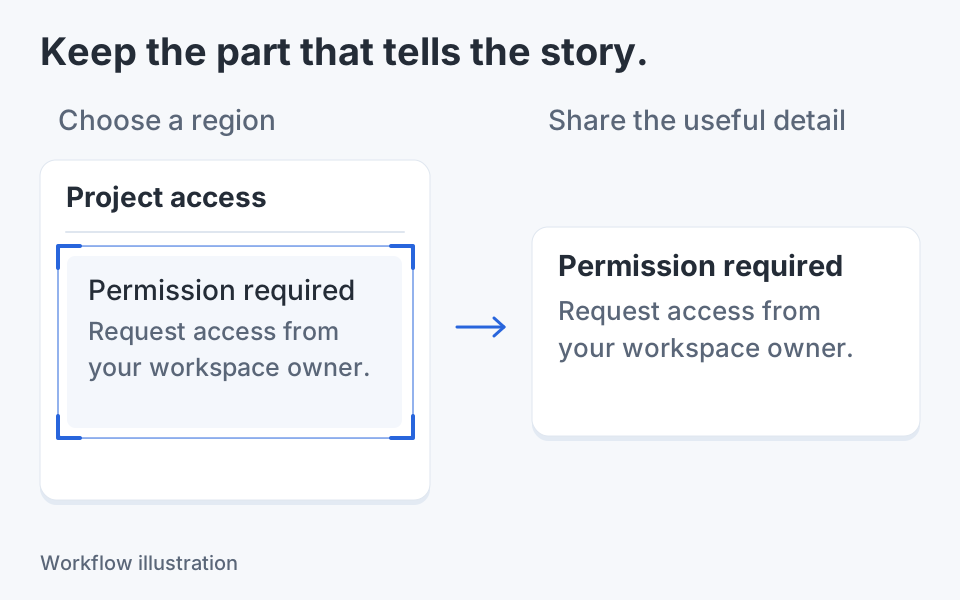
Draw a selection around the detail you need. Copy that region when you want a separate snippet while retaining the full image; apply Crop when you want the editing canvas itself to contain only that region.

On this page
Choose the result before committing a crop
A full screenshot can be useful for a bug report while one small panel is enough for a chat message. You do not have to discard the context just to create the snippet. Start with the original and decide whether you need a selected-region copy, text from that region or a cropped composition to continue editing. If you only need a new capture of the area, Windows Snipping Tool can capture that region directly.
Selection, crop and resize
| Action | Useful result | What happens to context |
|---|---|---|
| Copy a selected region | A snippet on the clipboard | The editor retains the full source composition |
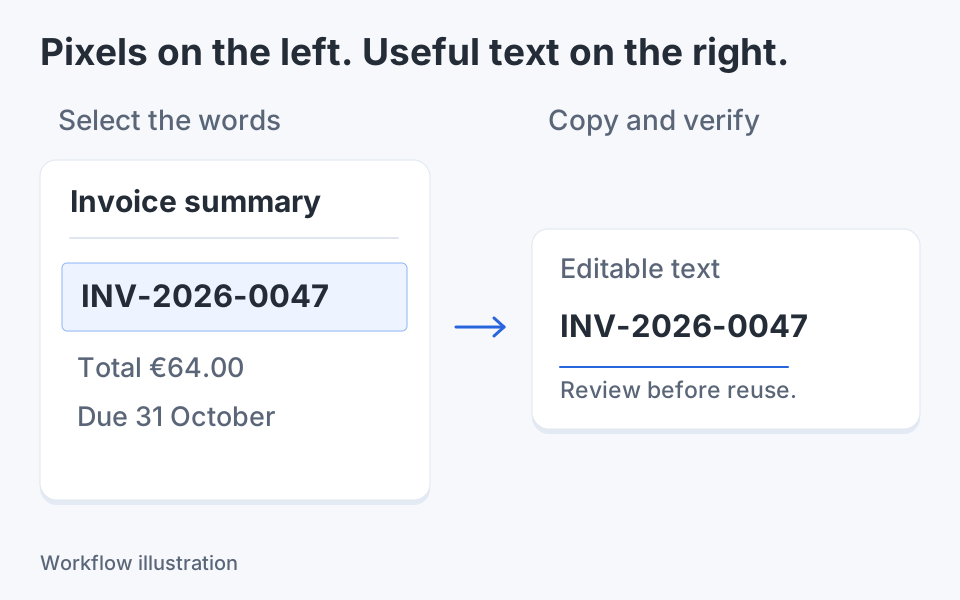
| OCR a selected region | Recognized text or QR data | The image is not cropped |
| Apply Crop | A smaller canvas to edit and export | Content outside the frame is excluded from that result |
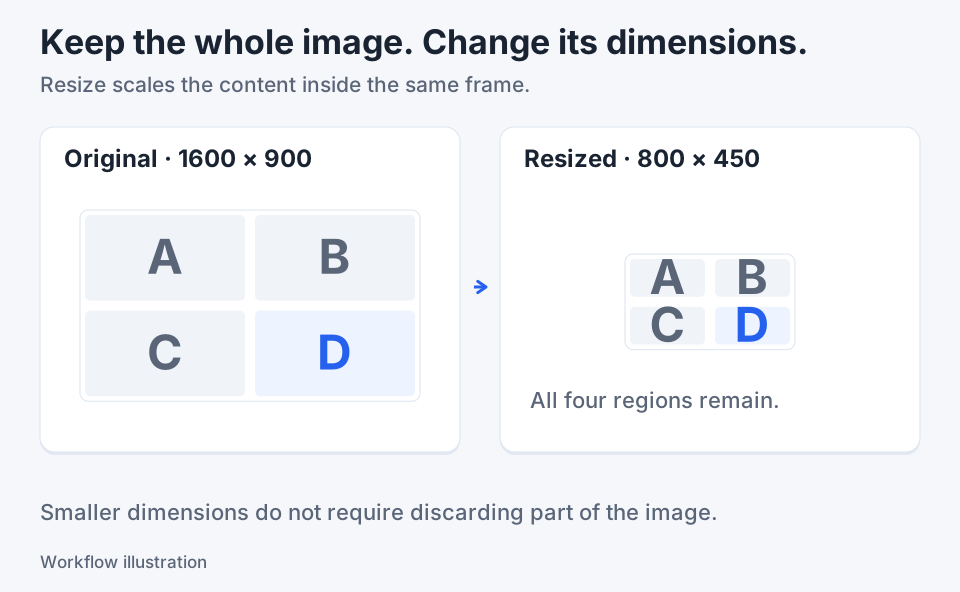
| Resize | A different pixel grid for the composition | The full composition is scaled unless you crop first |
Make and adjust a frame in Klips
Open the image in the editor and choose Crop from the tool picker. Creating the frame is separate from applying the crop.
- For the example's exact pixel dimensions, set the bottom output control to Native. If it reads Export 1×, click it once. Use px rather than Logical for the selection dimension readout.
- Drag around the region you need. Move the frame from its center, or use its eight handles to change its boundaries.
- With the canvas focused, use the arrow keys to move the frame. Ctrl plus an arrow resizes it; Shift increases the step from 1 to 10 source pixels.
- Use the selection's Copy action for an image snippet. Use OCR to recognize only that region. Neither action requires applying Crop.
- To make the frame the new editing canvas, press Enter while no dialog or guide is taking the input.
- Use Undo for a recent edit, or Image actions > Reset crop while it is available to restore the full source and editable layers. Save a separate output copy to preserve the original file.
Worked example: keep panel D
Imagine a 1600 × 900 practice image divided into four equal panels, labelled A, B, C and D. Panel D is the bottom-right 800 × 450 region. With Native output selected, copying that selection gives you an 800 × 450 snippet while the full A–D composition remains available in the editor. Applying Crop instead makes D the visible editing canvas. Resizing the full original to 800 × 450 retains all four panels at a smaller size. Equal output dimensions do not mean equal image content.
Let the image edges help
For a rectangular card or control, the frame can be refined against nearby image boundaries. In Crop, A adjusts the frame and Shift+A targets the edge nearest the pointer. Use the result as a starting point, then inspect it: a shadow, similar neighboring color or thin divider may not be the boundary you meant. The bracket keys adjust padding around the frame, with Shift using a larger step. These are canvas gestures, so text fields and open guides can consume input differently.
Keep the editing consequences clear
A committed crop uses the visible composition and can bake existing annotations into the cropped image. Undo restores the earlier state in the editing session. While Reset crop remains available, it restores the full source and retained editable layers. Later image operations such as Resize, Rotate, Combine or Backdrop can finish that retained crop state, so Reset crop is no longer available afterward; use Undo while the relevant history remains. A selected-region copy instead leaves the full composition available. Use Save as for a separate output and keep the private original out of the handoff.
Check the snippet in its destination
Paste into the actual chat, document or ticket. Confirm that the intended panel is present, that a border or line of text was not clipped and that the region was not scaled unexpectedly. For OCR, inspect the copied words and punctuation instead of judging only the frame. If the destination resizes the snippet, check the smallest important text there. You may need a slightly larger region for context rather than a tighter one.
Use a separate workflow for each next step
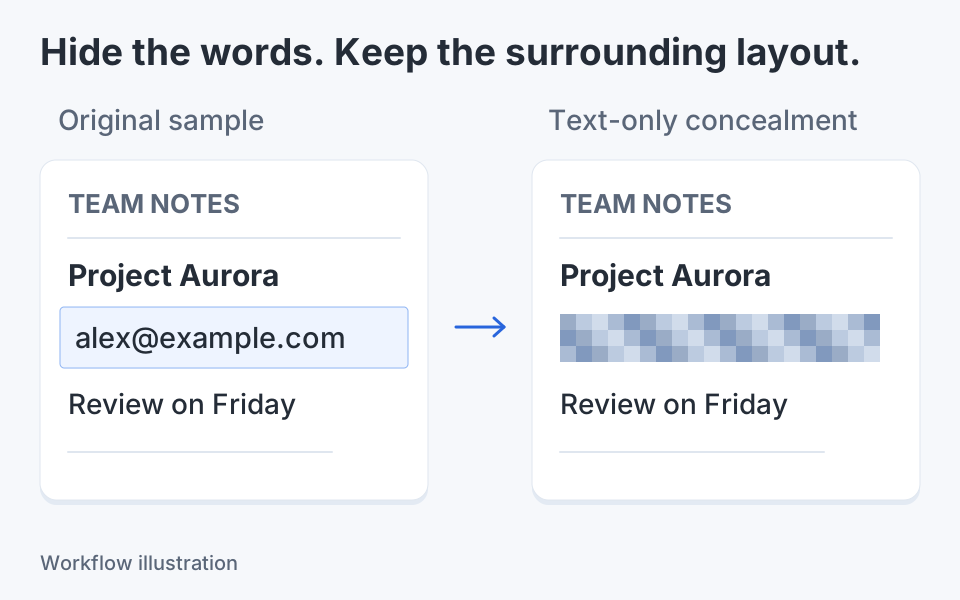
A crop answers which content to keep; resizing answers how many pixels the output should contain. Annotation explains the detail; redaction controls what is safe to reveal. Treat those as deliberate choices rather than repeatedly exporting and recapturing an image. Keep the original until the destination version has been checked, and use the editor's selection again when the next conversation needs a different part.

Keep the next screenshot in one workflow.
Capture the detail. Add a clear annotation. Copy text, measure spacing or keep a reference on screen.
Sources and review
Product details and external commands are referenced below. Klips publishes these guides and comparisons; worked examples and illustrations explain a workflow.