Screenshot guides
How to redact, blur or pixelate a screenshot on Windows
For private content, exclude it from the image or cover it completely with an opaque shape, then export and inspect the exact copy you will send. Blur and pixelation obscure appearance; they are not a guarantee that the information cannot be inferred.

On this page
Choose the output you need
A screenshot for a support ticket may need the error message and control labels while the customer's name stays hidden. Decide what the recipient needs to see before applying an effect. A tighter capture or crop may remove the private area entirely. If its position is useful context, a solid cover makes the concealment explicit. Keep an untouched original privately if you need it, and share the reviewed output rather than an editable working state.
Pick the treatment deliberately
| Treatment | Useful purpose | Important check |
|---|---|---|
| Crop the private area out | The surrounding context is unnecessary | The final image contains the intended region |
| Opaque filled cover | Conceal a specific value while retaining its position | No transparency or exposed characters at the edges |
| Pixelate or Blur | Visually obscure a chosen region | Strength and recognizable patterns still need review |
| Text only Erase or Pixelate | Target recognized words while preserving nearby UI | OCR can miss text or include the wrong word boxes |
Make an opaque cover in Klips
Use a copy of the source screenshot in the editor. A highlight is translucent by design, so use a filled shape for an opaque cover.
- Choose Rectangle and turn Fill on.
- Choose an opaque color. In More, the Color field can use #000000 for a solid black fill rather than a partially transparent color.
- Drag the rectangle over the complete private value, including the edges of its characters.
- Use Select to adjust the rectangle if anything remains visible. Keep the cover above the content it conceals.
- Export a separate PNG or JPEG copy and reopen it. Inspect the exact output before attaching or pasting it.
Pixelate or blur a selected area
Choose Pixelate and drag over the region. Mosaic forms blocks; Shuffle rearranges pixels in the selected area. The effect control changes mosaic block size. Choose Blur for a soft region and adjust its strength above the canvas. Both effects can be selected and their bounds adjusted while editing. Review the characters, patterns and surrounding context at full size. A visually pleasing effect is not a reason to use it for material that requires stronger concealment.
Use Text only without assuming it finds everything
In Pixelate or Erase, choose Text only before dragging the region. Klips runs local OCR and targets recognized word boxes inside that area. This is useful when text sits near a divider or icon you want to retain. It is not whole-image detection of every kind of secret. Recognition depends on installed Windows OCR languages, image clarity and the text itself. If a character, label or number is missed, use an opaque cover or exclude the area instead of repeatedly trusting the same incomplete recognition.
Worked example: a support image with an account name
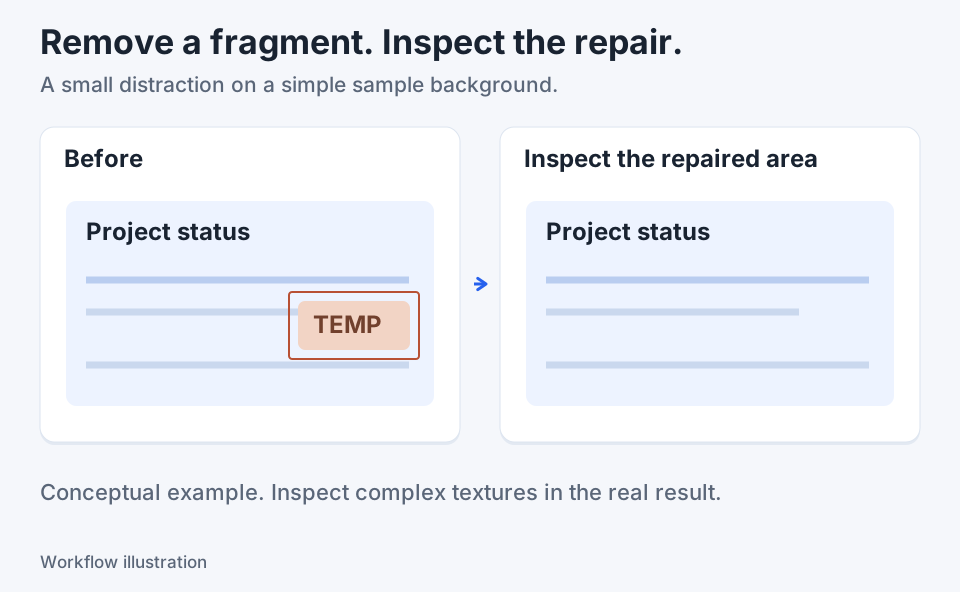
Consider a practice account panel with a useful error message and a customer-name field. Leave the error and its nearby control visible. Cover the complete name with an opaque rectangle, or test Text only Pixelate if preserving the field's surroundings is important. Reopen the exported copy and inspect both ends of the name field. Then review the whole image: another name may appear in a header, tab or notification. The example is about complete output review, not a promise of automated compliance.
Keep text recognition separate from concealment
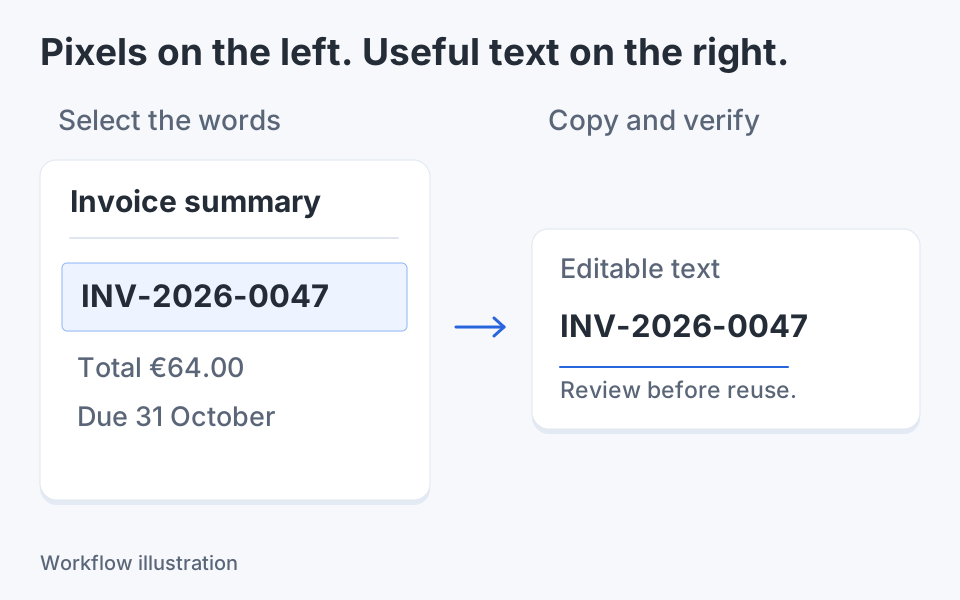
Copying words out of the source does not redact its image pixels. A name may also remain in a copied message, the original file or another attachment. Microsoft documents local Text actions and Quick redact for particular text types in Snipping Tool; those options may already meet a simple Windows task. Whatever application you choose, inspect its actual exported result and avoid assuming that all sensitive content was detected.

Keep the next screenshot in one workflow.
Capture the detail. Add a clear annotation. Copy text, measure spacing or keep a reference on screen.
Sources and review
Product details and external commands are referenced below. Klips publishes these guides and comparisons; worked examples and illustrations explain a workflow.