Screenshot guides
How to annotate a screenshot on Windows
Open the screenshot in an editor, add the smallest number of marks needed to explain the action, and check the result at its final reading size. An arrow should point precisely; a label should explain what the image alone cannot.

On this page
Start with the reader's next action
A screenshot can show where a button is without explaining why someone should use it. Decide what the reader needs to do or notice, then capture enough context to orient them. Avoid filling the image with competing circles, arrows and labels. Windows Snipping Tool provides basic markup for a quick task. A more involved editing session may need adjustable objects, numbering or a magnified detail.
Microsoft's Snipping Tool guide explains the available Windows baseline.
Choose a mark by its purpose
| Reader needs | Useful mark | Avoid |
|---|---|---|
| Find one exact control | An arrow ending beside the control | Covering its label with the arrowhead |
| See the order of actions | Numbered steps | Numbers without a clear sequence |
| Understand a short instruction | A text label | Repeating an entire paragraph in the image |
| Read a small detail in context | A magnified callout | Enlarging the whole image unnecessarily |
| Focus on one region | Highlight or spotlight | Treating a translucent highlight as redaction |
Build the explanation in Klips
Open the image in the editor. If you started with an area capture, the preview's Edit action opens the editing session. Choose tools from the picker rather than relying on a shortcut you may have customized.
- Choose Arrow and drag from its tail toward the detail. Adjust its color and size above the canvas.
- Choose Select to move an existing arrow or resize it with its handles. The selected object's controls let you revise its style.
- For a label, open Text, enter the wording through Text… and click the image to place it. Select the label and reopen Text… when you need to change the wording.
- Use Counter for a sequence, or Highlighter for a translucent band over relevant content.
- Keep Undo available while editing. Copy or save deliberately once the explanation is clear.
Worked example: explain an access setting
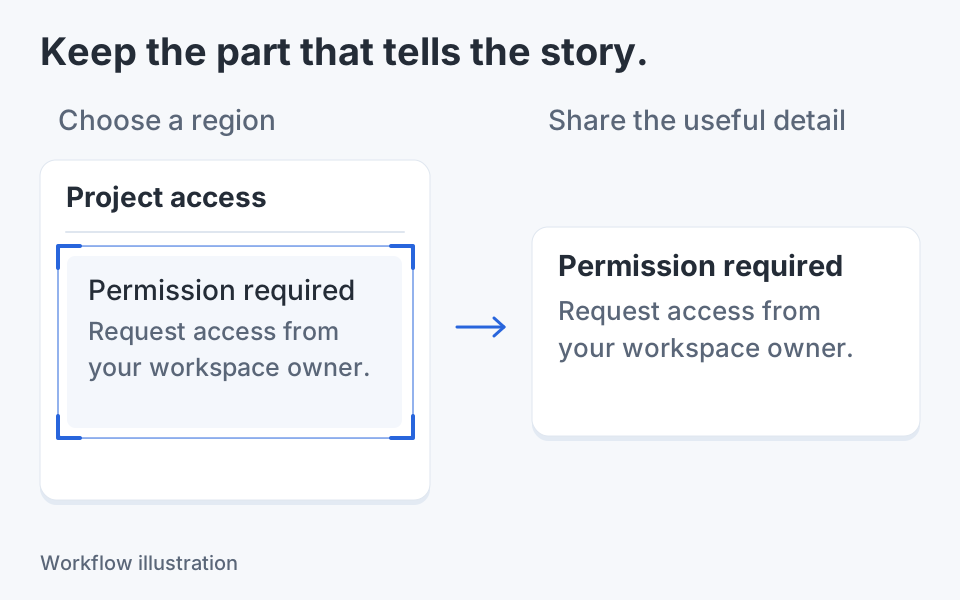
Suppose a practice access panel contains a disabled control and a nearby setting that enables it. Put a numbered marker beside the setting and an arrow pointing to its label. Add one short instruction explaining the first action. Keep the disabled control visible so the reader understands the relationship. If the arrow crosses an important message, select and move it. You are improving the explanation, not changing the underlying application's state. An illustration of this example is a teaching aid rather than evidence that the setting was changed.
Keep the marks easy to revise
Klips annotations remain objects during the editing session: select a mark to move it, change its available properties or delete it. Object ordering helps when one label covers another. Do image cleanup and major composition changes before the final annotation pass where practical; some image actions bake visible marks into pixels, with Undo restoring the earlier state. A saved PNG or JPEG is the finished raster image, not a promise that every mark will reopen as an editable project.
Use emphasis without losing evidence
A spotlight can direct attention while keeping surrounding content visible. A magnifier can explain a small icon without shrinking the whole interface. Freehand is useful for a quick underline; a straight arrow is often clearer for an exact control. Check contrast against both light and dark regions. If a mark obscures the message being reported, move it or reduce the annotation count. Preserve important wording and values rather than decorating over them.
Review before copying or saving
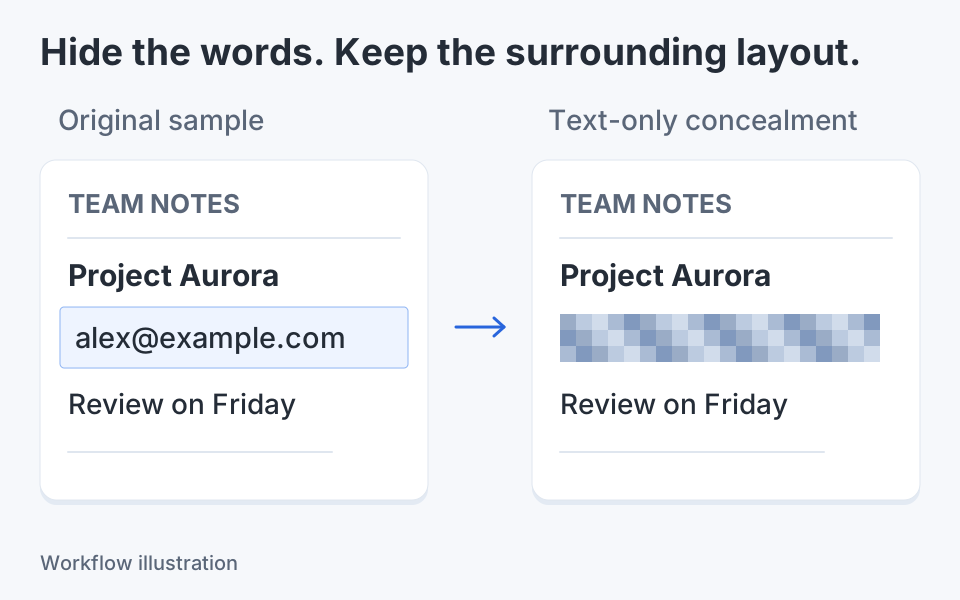
Fit the full composition, then inspect the smallest text at the size the recipient will see. Confirm that every arrow points to the intended control and that step numbers agree with the written instructions. Review private information separately: a highlight does not conceal a name or token. Export a separate copy, reopen it and check that the complete explanation is present. If you paste into a chat or ticket system, check that version as well because it may be scaled.
Redact private content before sharing. Resize the screenshot only when you know its destination dimensions.
Match the session to the job
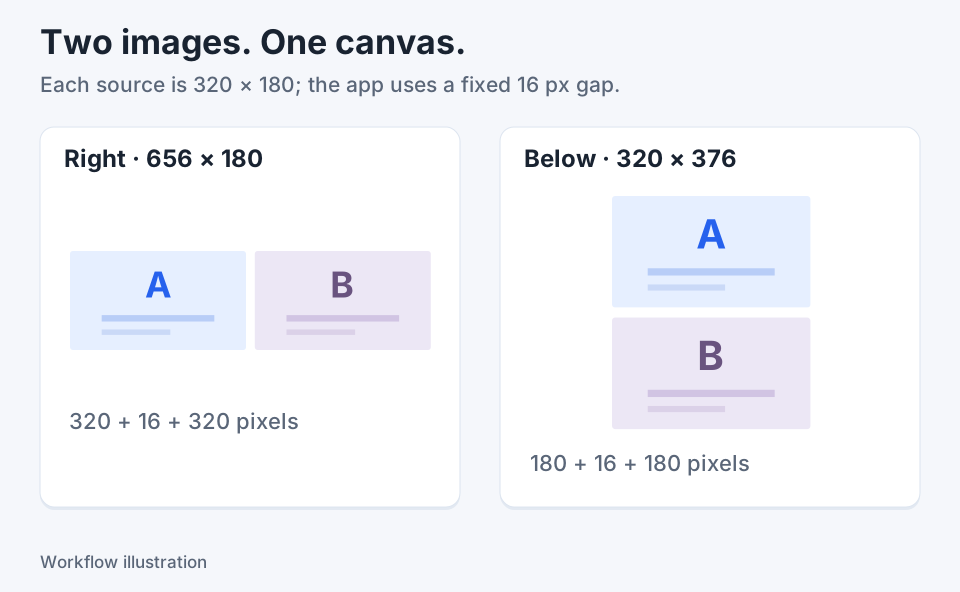
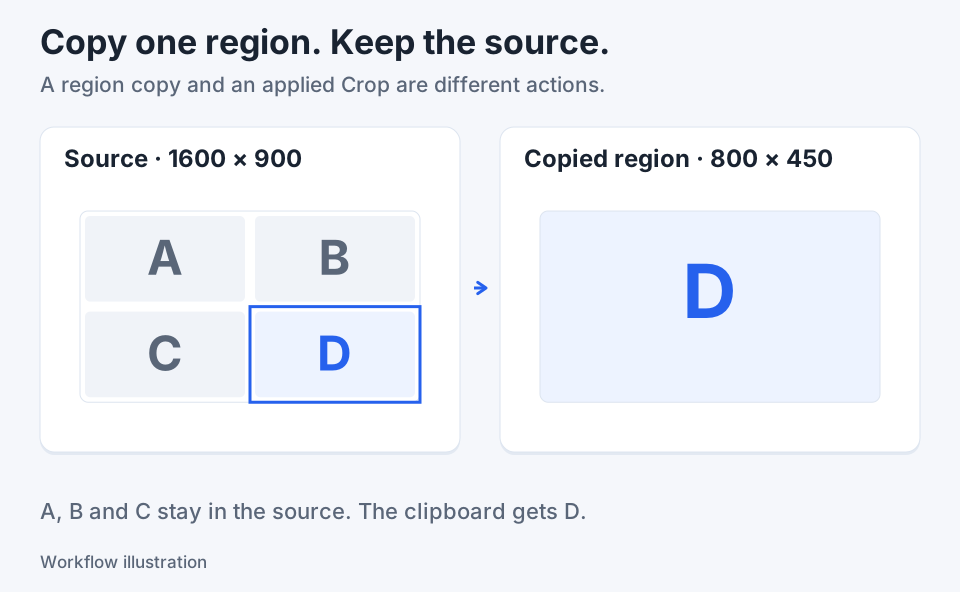
For a quick note, the tools already in Windows may be enough. ShareX also documents an editor with adjustable annotations and several finishing actions. Klips brings annotation together with selection copy, OCR, measurement and image composition. Evaluate that combination on a recurring task rather than assuming more tools always improve the result. The useful output is an explanation a person can follow, with enough original context to trust it.
ShareX's editing documentation describes that alternative workflow.

Keep the next screenshot in one workflow.
Capture the detail. Add a clear annotation. Copy text, measure spacing or keep a reference on screen.
Sources and review
Product details and external commands are referenced below. Klips publishes these guides and comparisons; worked examples and illustrations explain a workflow.