Screenshot guides
How to resize a screenshot on Windows
Change the image's pixel dimensions in Resize, keep its aspect ratio and inspect the saved result at the size people will read it. Enlarging a raster screenshot cannot recover detail that was never captured.

On this page
Set the output before changing the image
A screenshot for an 800-pixel-wide help article has a different requirement from one being printed or uploaded under a file-size limit. Start with the original capture and write down the required pixel width, height and destination. Crop away irrelevant content first if it is genuinely unnecessary. Keep a copy of the original so you can return to it instead of repeatedly shrinking and enlarging a previous export.
Four sizes that are easy to confuse
| Requirement | What changes it | What it does not guarantee |
|---|---|---|
| A different width or height in pixels | Resize, then Native output for the entered raster dimensions | Preserving every detail after shrinking |
| A closer view inside the editor | Zoom | A larger or higher-resolution exported image |
| Fewer bytes for an upload | Format, compression, crop and dimensions | A precise size limit without checking the file |
| A different print scale or density | Print sizing or density settings where supported | Additional captured detail |
Resize in Klips
Use the original image in the editor. If the dimension readout is labelled Logical, switch it to px when checking raster dimensions. Readout units and the export policy are separate controls.
- In the bottom status bar, choose Native output. If the output button reads Export 1×, click it once so it reads Native. Imported images with unknown source scale use native output.
- Click the image dimensions, or choose Image actions > Resize.
- Leave Keep aspect ratio enabled when the screenshot should retain its proportions.
- Enter the required width or height and let the linked dimension follow. Alternatively choose a preset such as 50% for a proportional reduction.
- Check both resulting dimensions before using the Resize button.
- Inspect the resized image at 100%, then at its intended reading size. Use Undo if you need to return to the previous document state.
- Save a separate output copy and reopen it to confirm the actual pixel dimensions.
Worked example: 1600 × 900 to 800 × 450
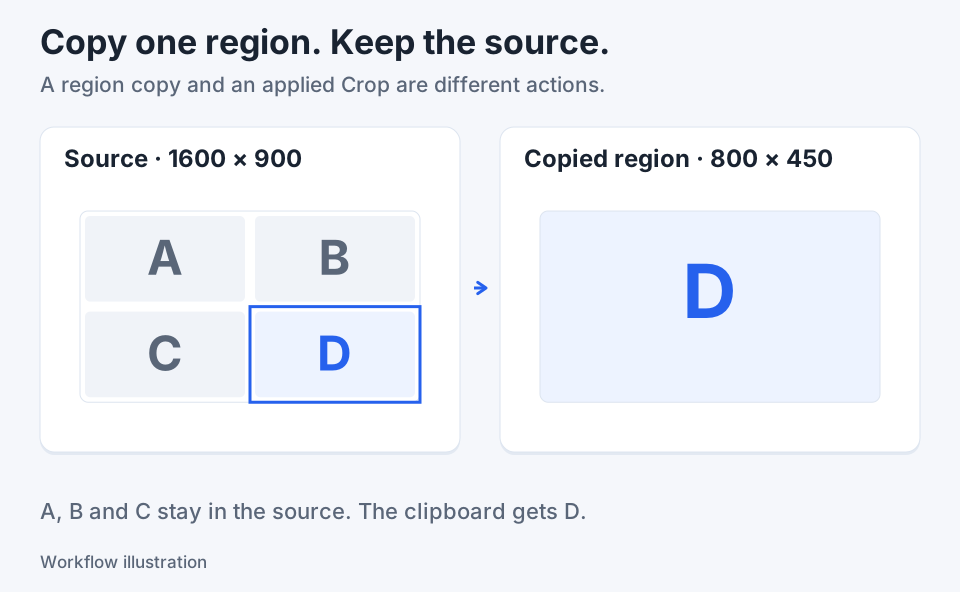
A practice screenshot measures 1600 × 900 pixels. Its aspect ratio is 16:9. With Native output selected, reducing it to 50% produces an 800 × 450 image, retaining the full composition while giving it fewer pixels. If it contains four panels A–D, all four remain. The text and controls become smaller in the output. Cropping an 800 × 450 region from the original is a different operation: it keeps those source pixels and discards surrounding context. Choose which result explains the task before you change the image. These dimensions illustrate the geometry, not a quality benchmark.
Protect small text
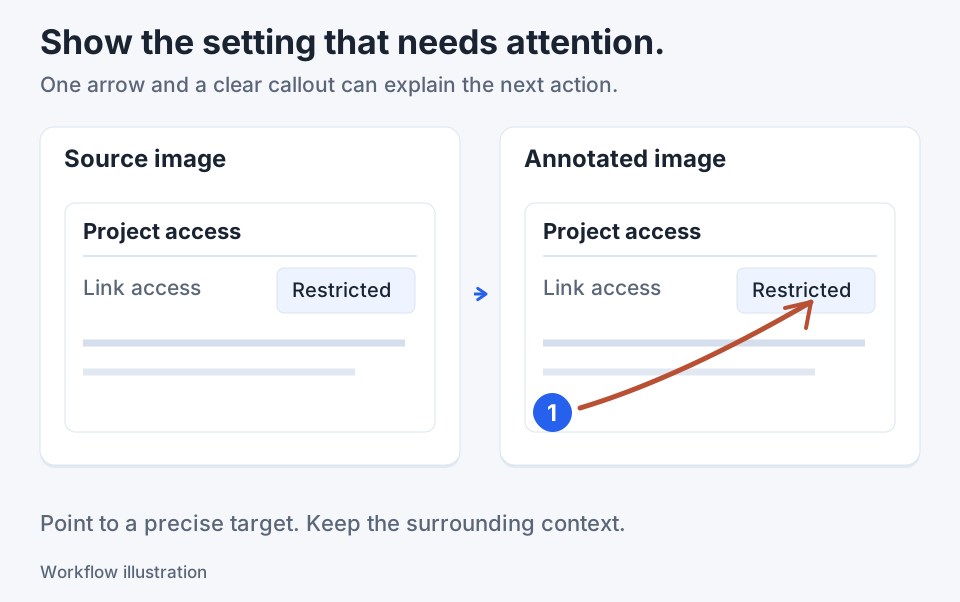
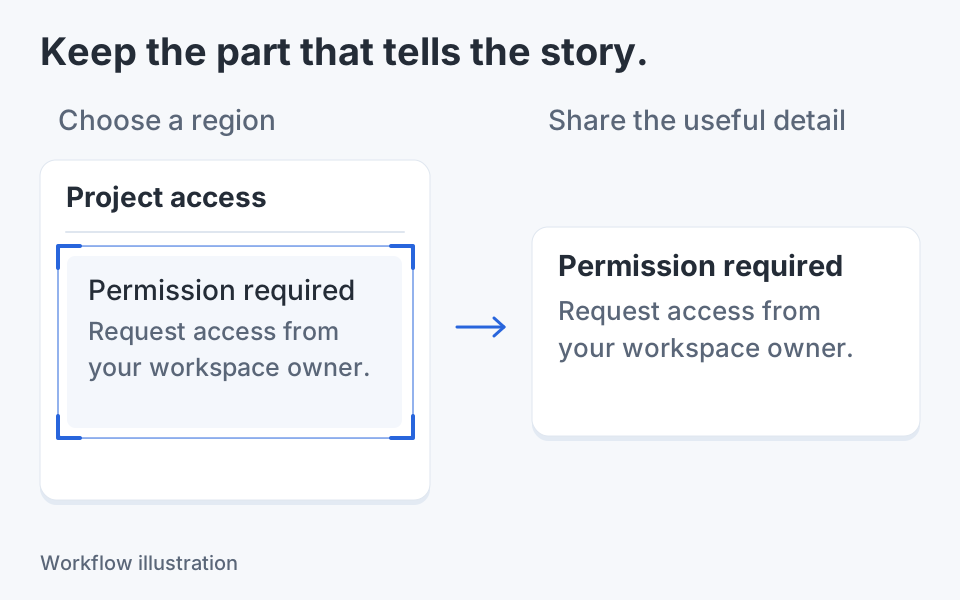
A heading may remain readable after reduction while a small status label becomes difficult to read. Check the smallest detail the recipient needs, not only the overall appearance. If the image becomes too dense, use a focused crop or a magnified callout rather than repeatedly enlarging the reduced copy. Resize before the final round of annotations where practical, so you can choose label sizes for the delivered image. Keep the original available while you make that decision.
Pixel dimensions, density and file bytes
An image's width and height describe its raster grid. Zoom changes your view. Klips also separates Native output from Export 1×: on a capture with known source scale, Export 1× deliberately uses source logical sizing for raster Copy and Save, so saved dimensions can differ from the raster dimensions you entered. Choose Native when you need the example's exact 800 × 450 output. This is separate from print density, which maps pixels to a physical size. File bytes depend on content and encoding too: two images with identical pixel dimensions can have different sizes. PNG is often useful for text and transparency; JPEG trades detail for compression.
Adobe explains JPEG and PNG tradeoffs. For a file limit, the decisive check is the saved file's byte size.
Use PowerToys for a group of images
If PowerToys is installed, its Image Resizer can resize images from File Explorer, including proportional fitting choices. PowerToys is a separate Windows utility you install, rather than a built-in screenshot feature. It can be useful for a group of files without a screenshot editing session. Klips adds the surrounding capture, crop and annotation workflow, but this guide does not claim batch resizing in Klips. If your application offers a clean native export at the required size, use that source rather than enlarging a small screenshot.
Check the delivered version
Open the saved image independently. Confirm the dimensions, inspect the small text and view it at the width used in the destination. If a website or chat service scales it again, inspect that displayed version too. A sharp editor preview does not prove the recipient sees the same size. Keep the source file distinct from the output, and avoid a title such as “no quality loss” when a change in pixel count has necessarily changed the available detail.

Keep the next screenshot in one workflow.
Capture the detail. Add a clear annotation. Copy text, measure spacing or keep a reference on screen.
Sources and review
Product details and external commands are referenced below. Klips publishes these guides and comparisons; worked examples and illustrations explain a workflow.