Screenshot guides
How to combine screenshots into one image
Choose a horizontal layout for a comparison or a vertical layout for a sequence. Combine separate images when you want one deliverable; use scrolling capture when the goal is one continuous page.

On this page
Decide whether you are joining or stitching
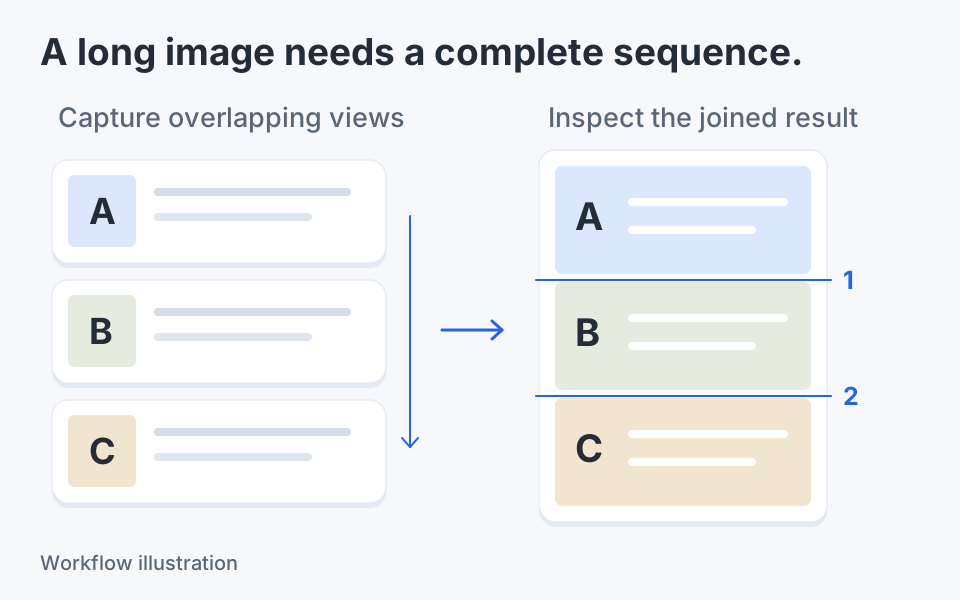
Two different application states need a composition. Two overlapping captures from the same long page need their repeated content checked. Joining does not automatically remove that overlap or prove the page is complete. For a new long-page capture, use the browser's full-page option or a suitable scrolling workflow. For a before-and-after pair or two instruction panels, a simple horizontal or vertical join is usually easier to reason about.
Take a scrolling screenshot on Windows for the continuous-page job.
Choose a layout before adding files
| You need | Choose | Main check |
|---|---|---|
| Compare two states | Combine right | Both states remain readable at the delivered width |
| Show a short sequence | Combine below | The order is clear from top to bottom |
| Move and scale each picture freely | Insert image overlays | Objects do not accidentally cover important content |
| Capture one long page | Full-page or scrolling capture | No omitted or repeated page content |
Combine files in Klips
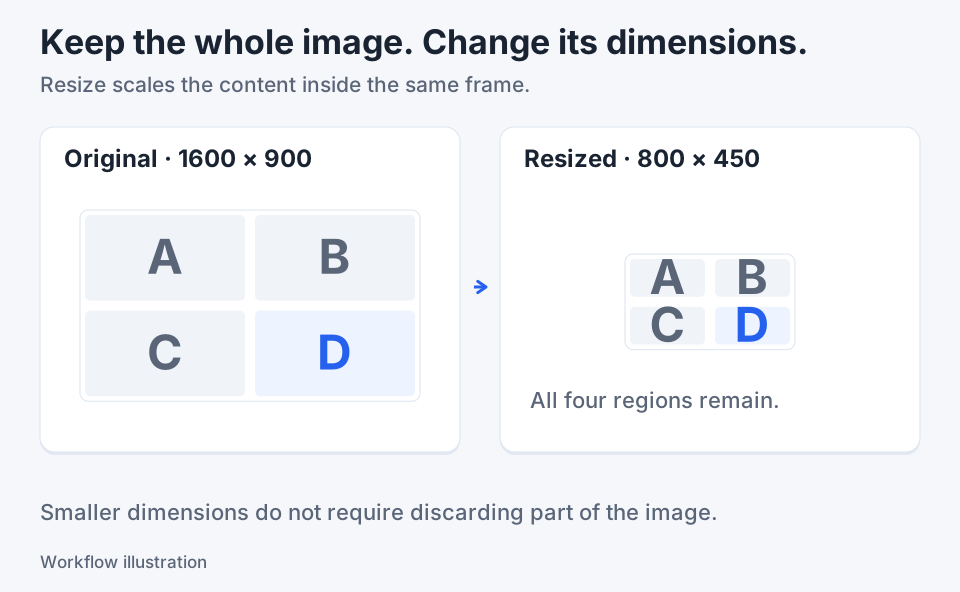
Prepare the source images first. Crop irrelevant margins and resolve any large size difference before making the combined image.
- Open the image that should appear first in the editor.
- Choose Image actions > Combine right to place another local image beside it, or Combine below to append it vertically.
- Select the second image in the file dialog. The current workflow inserts a fixed 16-pixel gap.
- Fit the result and check its order, edges and dimensions. Use Undo if you chose the wrong source or direction.
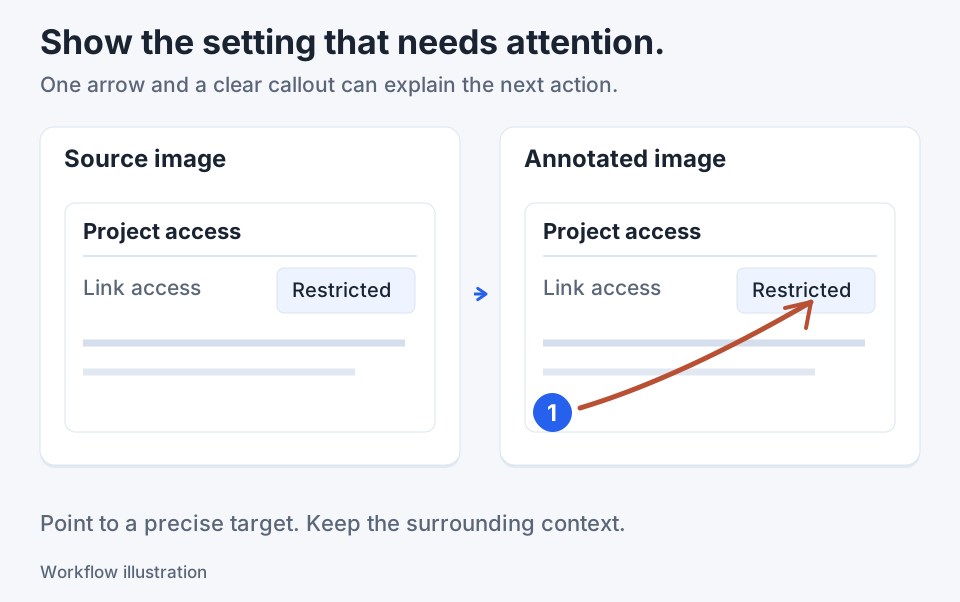
- Add the final labels or callouts after the combination, then save a separate output copy.
Worked example: two 320 × 180 images
Take two plain practice images, each 320 × 180 pixels, without a backdrop changing their size. Combine right produces a 656 × 180 canvas: 320 + 16 + 320 pixels. Combine below produces a 320 × 376 canvas: 180 + 16 + 180 pixels. The gap is fixed in the current application workflow; there is no gap slider in these commands. This example explains the expected geometry. It is not a report of a fresh export measurement.
Know what remains adjustable
Combine uses the visible current image and the added source to create a new raster composition. Existing visible annotations can be baked into that result; Undo restores the earlier document state. The two original pictures do not become independently movable tiles through these commands. Add your final annotations afterward if you want to keep adjusting them in the editing session. Retain the original source files so you can rebuild the composition without repeatedly resampling an exported copy.
Use overlays for a flexible arrangement
If you need to move one image over another, choose Image actions > Insert image, or the image-overlay paste action. An inserted overlay is an editable image object that can be selected, moved and resized. Its controls also support transparency. This is a different route from appending a source to the right or below. Use it for a detail inset or a manually arranged composition, and check the layer order before copying the result. This guide does not imply an automatic grid or bulk slide-import tool.
Check order, text size and the join
Open the saved output and read it in the destination, not only while zoomed into the editor. A wide pair may be reduced substantially in a narrow article column; a vertical pair may work better there. Look for clipped labels, extra margins and a repeated header that could confuse the reader. If the sources overlap, inspect the repeated content explicitly. Never treat the existence of one large file as proof that a long conversation or document has been captured completely.
Keep the deliverable focused
A combined image is useful when the recipient needs to see the relationship between a small set of images. For many presentation slides, export them from the presentation application first and decide whether a handout or document is more readable than one huge raster. For a support image, two states and short labels may be enough. ShareX documents related image-editing and composition tools if you need an available alternative. Choose the workflow that keeps the important text readable.

Keep the next screenshot in one workflow.
Capture the detail. Add a clear annotation. Copy text, measure spacing or keep a reference on screen.
Sources and review
Product details and external commands are referenced below. Klips publishes these guides and comparisons; worked examples and illustrations explain a workflow.