Screenshot guides
How to remove an image background on Windows
Use a background-removal tool to isolate the foreground, inspect the edge and export as PNG when you need transparency. A clean cutout depends on the source image; thin details and similar foreground and background colors need careful review.

On this page
Decide whether transparency is necessary
A product card for a document may need a transparent surround so it can sit over another background. An interface screenshot may only need a tighter crop. Choose the simpler result when it explains the content correctly. Background removal is different from erasing one distraction and different again from putting a backdrop around an unchanged screenshot. Keep an original copy before trying the operation.
Crop a focused image region or erase a small visual distraction when those jobs match the requirement.
Choose the right kind of edit
| You want | Choose | Result |
|---|---|---|
| Only the subject with a transparent surround | Remove background | Foreground pixels plus an alpha boundary |
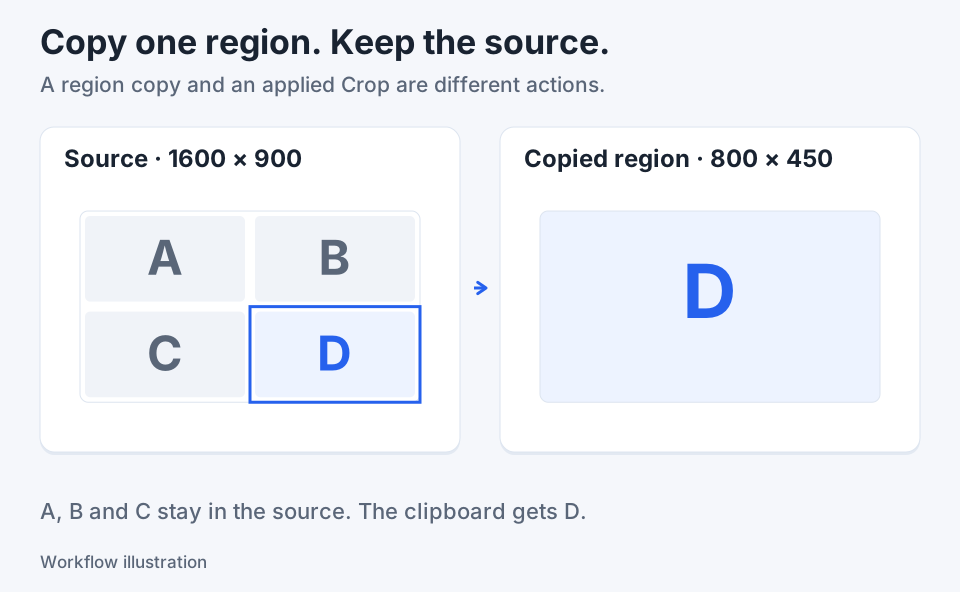
| A smaller rectangular piece of the source | Crop | A retained region with its original background |
| A polished frame around the complete screenshot | Backdrop | The screenshot presented on a new surrounding background |
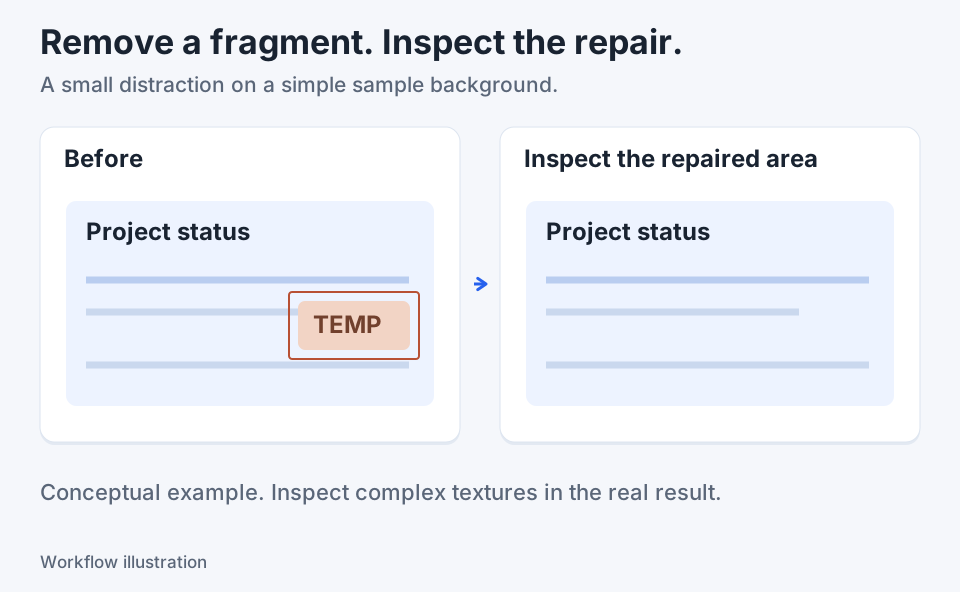
| One unwanted item removed from a surface | Erase | A reconstructed local image region |
Open the local review in Klips
Use a source with a clearly visible subject. If you need only a small rectangular area, prepare that composition first so the operation has less unrelated content to consider.
- Choose Image actions > Remove background.
- Wait for the local CPU processing to prepare the review. A reliable foreground is not guaranteed for every source.
- Use Preview to compare Cutout, Alpha mask and Original.
- Adjust Threshold and Soft edge in small steps, inspecting the outline after each change.
- Choose Apply only when the result is useful. Cancel leaves the working image unchanged.
- Save a separate PNG copy when you need to preserve transparency.
Worked example: isolate a product card
Suppose a practice image shows one clearly bounded product card against a contrasting surround. The goal is to place the card over a different document background without bringing the surround with it. In Cutout view, check that the card's corners remain intact. In Alpha mask view, inspect whether the intended subject is retained and the unwanted surround is transparent. Compare Original when an edge becomes uncertain. This example explains what to review; it is not a promise that every card, photograph or logo will be segmented cleanly.
Refine edges without hiding a bad mask
Threshold and Soft edge change the boundary treatment, but a smoother outline is not necessarily a more accurate one. Look for missing thin details, unwanted fragments and a halo from the original background. If the subject and background have similar colors, review several parts of the edge rather than only the largest flat area. If the application cannot produce a reliable foreground, cancel and choose another source or a rectangular crop. Do not describe an estimated outline as a reconstruction of the original object.
Understand Apply and Undo
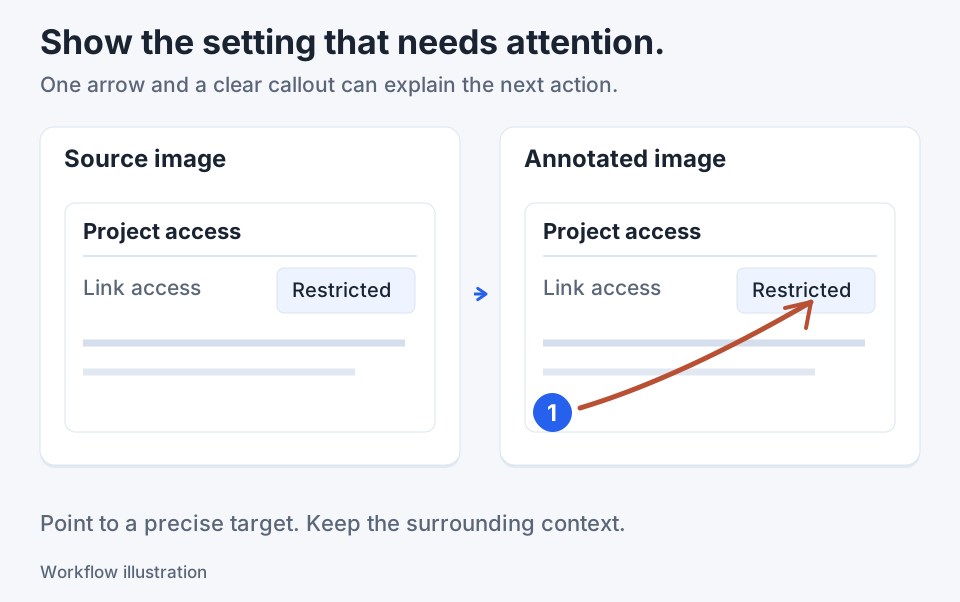
Applying the result makes the cutout part of the image operation and can bake visible annotations into its pixels. Undo restores the previous document state in the editing session. For a flexible explanation, perform the cutout first and add final arrows or labels afterward. Keep the original image file separately. Background removal is an image-processing action, not an upload, but that does not describe every optional sharing or diagnostic feature in the application.
Preserve alpha in the exported file
Use PNG when the transparent surround must survive export. JPEG does not preserve that transparency. Reopen the PNG over a checkerboard or place it against both a light and a dark background; an edge that looks acceptable on one can reveal a halo on the other. Confirm that any unexpected white rectangle is not simply the viewer's background. Changing print density or zoom does not fix missing foreground pixels. Return to the source or undo and refine the mask when the outline itself is wrong.
Adobe's JPEG and PNG comparison explains the format distinction.
Choose an alternative by its actual method
Background-removal tools use different approaches. TechSmith documents fill and selection-based methods for transparent backgrounds in Snagit. That is a separate workflow from Klips's local foreground review, and it does not establish equal results. Choose the method that suits the image, inspect the exported file and retain the source. For a screenshot that only needs cleaner presentation, a backdrop or crop can be more faithful than trying to isolate the entire interface.

Keep the next screenshot in one workflow.
Capture the detail. Add a clear annotation. Copy text, measure spacing or keep a reference on screen.
Sources and review
Product details and external commands are referenced below. Klips publishes these guides and comparisons; worked examples and illustrations explain a workflow.