Guides
How to reduce screenshot file size on Windows
Start by removing unnecessary content, then choose the pixel dimensions and file format the recipient needs. Smaller dimensions can reduce file size; changing the filename or viewing zoom cannot. Keep an original and compare the actual exported files before sending one.

On this page
Decide what must survive
A screenshot of a settings dialog needs readable labels and sharp edges. A capture dominated by a photograph may tolerate JPEG compression. A transparent cutout needs a format that preserves transparency. Choose around the information in the image, rather than treating every screenshot as a photograph.
Write down the real constraint: an attachment limit, a maximum image width, or simply a sluggish document. A 1 MB limit and an 800-pixel display width are different requirements. File size depends on content and encoding as well as dimensions, so there is no reliable universal conversion from pixels to kilobytes.
Choose the change with the least information loss
| Situation | Try first | Check |
|---|---|---|
| Unrelated desktop around the subject | Crop the unnecessary area | Keep context needed to understand the issue |
| Image is much wider than its destination | Resize proportionally | Smallest labels remain readable |
| Mostly text, icons, or transparency | PNG | Compare bytes; do not assume it is always larger |
| Mostly photographic content | JPEG export | Inspect text edges and white transparency matte |
Make a smaller copy in Klips
- Open the image or capture the required area. Save an original before making changes if this is the only copy.
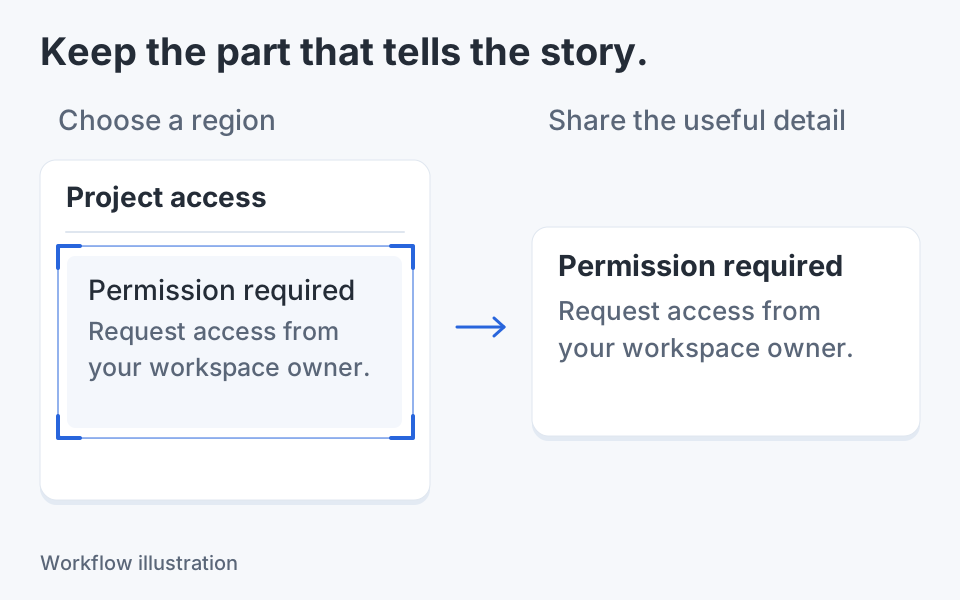
- Use Crop to remove irrelevant margins. Finish or cancel the pending crop before continuing so the exported area is intentional.
- Choose Image actions → Resize…. Leave Keep aspect ratio enabled and enter a useful width, or use a percentage preset such as 50%. Confirm with Resize.
- Use Save as… to create a separate PNG or JPEG file. Choose a new name so comparison with the original is straightforward. Do not assume renaming .png to .jpg changes the encoding.
- Open the saved copy, check its pixel dimensions and file size in File Explorer, and inspect it at the size the recipient will use. Keep the smallest version that preserves the necessary detail.
If you already have PowerToys installed, Microsoft's Image Resizer can resize selected files from File Explorer. That is a separate utility, useful for a group of images; it is not a Klips batch-compression command.
Worked example: an attachment with a strict limit
Suppose a support form accepts 1 MB per attachment and your 2560 × 1440 capture includes a small error dialog. First crop to the dialog plus the nearby control that caused the error. If that copy now fits, stop: shrinking the text further has no benefit.
If it still exceeds the limit, try a smaller proportional width and compare PNG with JPEG. A text-heavy PNG may remain the clearer choice even when a photographic JPEG would be smaller. These are decision steps, not claimed benchmark results; your content determines the final byte count.
For a second example, reducing a 2400 × 1600 image to 1200 × 800 leaves one quarter as many pixels. That does not guarantee a file one quarter the size, because the encoder and visual complexity also matter.
Check the file you will actually send
Read the error code, a thin icon, and the smallest annotation in the exported copy. Check that arrows still point to the intended target and that a crop has not removed an important heading. If the recipient will view it inside a narrow ticket panel, inspect it at roughly that displayed width rather than only at a comfortable editor zoom.
JPEG cannot retain alpha transparency. Klips composites transparent pixels onto white for JPEG output, which can change the appearance of rounded edges or cutouts. Keep PNG when those transparent edges are part of the intended result. Repeatedly resaving an already compressed JPEG can also accumulate visible damage; return to the original for a new version.
When the file is still too large
A long scrolling image may contain more information than one attachment can sensibly carry. Split it at meaningful section boundaries, or send a permitted document instead of reducing every line to unreadable text. If dimensions must stay unchanged, avoid pretending that a zoom setting or a DPI label will remove the underlying pixels.
Klips also separates native output from source logical 1× when capture-scale information is known. Read the current output label before exporting; an imported image with unknown scale stays in native pixels. Use that option deliberately, then verify dimensions, rather than treating it as a lossless compression switch. Remove private material before creating the final copy, and inspect that exact exported file again.

Keep the next screenshot in one workflow.
Capture the detail. Add a clear annotation. Copy text, measure spacing or keep a reference on screen.
Sources and review
Product details and external commands are referenced below. Klips publishes these guides and comparisons; worked examples and illustrations explain a workflow.