Guides
How to add a background to a screenshot
Use padding for simple extra space, or Backdrop for a presentation frame with a color, gradient, or image. Frame the screenshot after deciding its crop. Check the exported dimensions and edges before placing the result in a document or slide.

On this page
Choose space or a designed frame
Padding adds breathing room around a capture. A backdrop adds a visual surface behind it, often with corners or a shadow. Neither operation should substitute for a missing screenshot: capture the actual interface state first, and keep enough context for a reader to understand it.
A quiet background is usually easier to reuse than a decorative one. For an error-report attachment, plain padding may be enough. For a release note or presentation, a restrained frame can separate a white interface from a white page. Use the same margin and corner treatment across related images so the frame does not become the most noticeable part of the explanation.
Pick the smallest useful treatment
| Goal | Klips route | Result to check |
|---|---|---|
| Simple border or transparent space | Padding… | Extra canvas without a decorative scene |
| One consistent surface | Backdrop… → Solid | Even separation from the surrounding page |
| A gentle color transition | Linear or Radial | Text and annotations remain dominant |
| A photograph or custom surface | Image | Useful crop, restrained contrast, acceptable file size |
| A multi-color frame | Mesh | Consistent corners and readable edge detail |
Build the frame
- Open or capture the screenshot and decide which content belongs in the image. Finish the crop before adding the surrounding frame.
- Open Image actions → Backdrop…. Choose Solid, Linear, Radial, Image, or Mesh according to the result you need.
- Set the padding and the Corners / shadow (px) controls. Keep enough room for the shadow to read without overwhelming the subject. Set Shadow opacity (%) with the destination background in mind.
- For a solid surface, set Color (hex RGBA). Gradient modes offer start and end colors; the linear mode also exposes an angle. Image mode uses an image you choose, so review what that image contains.
- Review the preview, then select Apply. Save a separate output and open it outside the editor. If the frame is wrong, revise it or use Remove backdrop rather than cropping away pieces at random.
Worked example: a release-note card
Imagine a 1000 × 600 settings screenshot that will sit on a white release-notes page. Start with a modest solid background and equal margins, then add a subtle shadow only if it helps distinguish the interface from the page. Keep the original labels at a readable size; a larger frame around tiny text does not improve comprehension.
If you choose 40 pixels of padding on each side, the surrounding space adds 80 pixels to each dimension before considering the selected frame treatment. Read the resulting dimensions rather than assuming every decorative option preserves the starting size. This is an illustrative layout, not a measured application benchmark.
Place one callout inside the relevant area and leave the rest of the background empty. A reader should immediately find the changed setting, rather than spend time decoding the decoration.
Understand what stays editable
Klips applies the backdrop while keeping annotations editable. That makes a frame easier to revise than a series of destructive borders pasted around a flattened image. Removing the backdrop restores the source size; objects placed in the outer margin can then sit off canvas. Undo can restore the previous framed revision.
Other image operations can commit or transform the current composition. If you are about to resize, combine, or rasterize the work, save an output and consider whether you still need to adjust the frame. Do not rely on an unrelated future operation preserving every backdrop control as a separate setting.
Adding a background is also different from removing a subject's existing background. The latter is a cutout task. A gradient behind a screenshot will not make an opaque white rectangle inside the source disappear.
Check edges, transparency, and the destination
Inspect all four corners and the smallest text at the final displayed size. Make sure a shadow is not mistaken for part of the captured interface. If you added an external background image, check its crop and any unrelated details before sharing. An otherwise clean screenshot can still expose information through the decorative image.
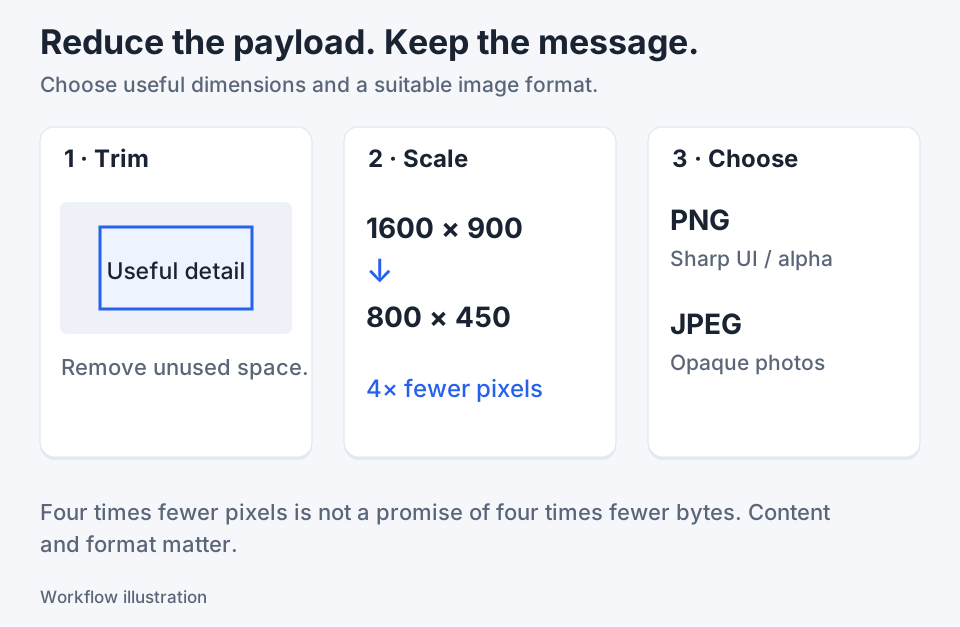
Use PNG when transparency is required. JPEG output uses a white matte for transparent pixels, so compare it against the document background before choosing it. A frame also increases the image area and may increase file size; if an attachment is too large, reduce unnecessary margins before shrinking the interface itself.
Keep a consistent plain version for support work when the designed version is intended for a presentation. The same source can support both uses, but the reader's immediate task should determine which output you send.

Keep the next screenshot in one workflow.
Capture the detail. Add a clear annotation. Copy text, measure spacing or keep a reference on screen.
Sources and review
Product details and external commands are referenced below. Klips publishes these guides and comparisons; worked examples and illustrations explain a workflow.