Guides
How to capture every slide in a PowerPoint presentation
If you have the presentation file, export every slide to PNG from desktop PowerPoint instead of taking screenshots one by one. PowerPoint creates separate image files. Use Klips afterward for individual annotations or comparisons; it does not provide a batch PowerPoint deck-import or contact-sheet command.

On this page
Choose slides, visible states, or a recording
A deck contains more than the final-looking rectangles you see in a meeting. Decide whether you need the slide artwork, a particular on-screen state, or the timing of a presentation. Those outputs require different methods, and one image per slide cannot preserve every interaction or animation.
For a clean archive of static slides, the application's own export is the useful starting point. It avoids capturing desktop chrome and makes the output independent of how neatly you can position a capture rectangle. A screenshot is still appropriate when the visible state itself is important, such as a rendering issue in Slide Show.
Get permission to copy the deck and choose an output folder suitable for its sensitivity. Exporting creates additional files outside the original presentation's workflow; review their sharing and synchronization settings before distributing them.
Choose the output first
| Need | Use | Boundary |
|---|---|---|
| One static image per slide | PowerPoint image export for all slides | Separate flattened files, not an editable deck |
| One particular visible state | A deliberate screenshot of that state | Capture only the intended screen area |
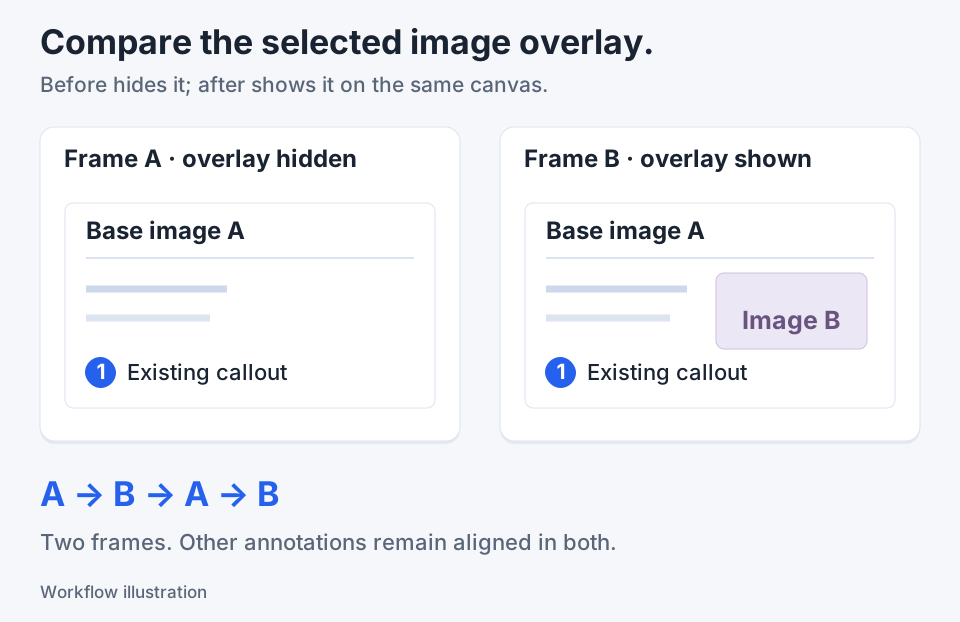
| Narration, timing, or animations | PowerPoint video export or an approved recording workflow | Not a Klips two-frame comparison |
| An annotated excerpt | Open the selected exported image in Klips | No automatic batch deck import or slide grid |
Export every slide from desktop PowerPoint
- Open the presentation in desktop PowerPoint and save the current deck. Check that you are using the intended revision rather than an older local copy.
- Choose File → Save As, or Save a Copy for a presentation stored on OneDrive or SharePoint. Select a destination you can identify later.
- Choose PNG Portable Network Graphics Format in the file-type control and save. PNG is a sensible starting point for slides containing small text and line art.
- When PowerPoint asks which slides to export, choose the all-slides option, commonly shown as Every Slide or All Slides. Do not choose the current-slide-only option when you need the full deck.
- Open the resulting folder and inspect the separate images. Check their number, sequence, first and last slide, and a few detail-heavy slides before processing anything further.
These are PowerPoint's export actions. Klips is not opening the .pptx, driving Slide Show, or capturing the deck in a batch. If you need motion and narration, Microsoft's separate Create a Video workflow is more appropriate than an image export.
Worked example: a twelve-slide review package
Suppose a twelve-slide product update needs a review copy with comments on slides 3 and 8. Export all slides to a new folder for that revision. Check that the output contains the expected twelve images and that slide 1 and slide 12 match the intended opening and closing.
Inspect the middle of the set as well: a correct count can still conceal an outdated chart or an unexpectedly rendered font. Open only slides 3 and 8 in Klips, add specific arrows or numbered notes, and save those annotated copies under clearly distinct names.
Keep the untouched exported images beside the reviewed copies, with a short index explaining which files contain comments. That preserves the distinction between the presentation artwork and your feedback. This is a worked example of organizing output, not a claim that a real twelve-slide deck was exported during this guide.
Check visual fidelity and ordering
Read the smallest text at the size the recipient will actually use. Check charts, equations, fine rules, image crops, and any font that might differ across machines. If the export is inadequate, return to PowerPoint's source layout and appropriate export settings rather than repeatedly enlarging a blurry screenshot.
Sort and review the sequence carefully. Filenames that contain numbers may sort differently in different tools, especially when another person renames or imports them. If the package has a required order, provide an explicit index or apply a consistent numbering scheme without overwriting the original files.
Static images do not contain editable text boxes or shapes. Supply the original deck through the approved route when the recipient needs to edit it. For accessible review, provide meaningful text or an accessible source document alongside image-only material rather than assuming screenshots can replace it.
Use screenshots only when the screen state matters
If you only have a live Slide Show view, capture the relevant states deliberately and keep track of slide numbers yourself. Do not present that manual process as an automatic full-presentation capture. A single slide can have several meaningful animation states, so decide which state answers the review question.
Review each capture for pointer overlays, meeting controls, speaker information, and unrelated screens. Use the native Windows capture shortcut or your configured Klips capture action, then inspect the saved result. Protected material or a restricted presentation may require a different authorized sharing route.
Klips can edit the exported stills and create a two-image comparison, but those capabilities do not imply an editable PowerPoint export, a slide contact-sheet grid, or a recorder. Choose the native deck export when you need all static slides, and reserve image editing for the specific feedback that adds value.

Keep the next screenshot in one workflow.
Capture the detail. Add a clear annotation. Copy text, measure spacing or keep a reference on screen.
Sources and review
Product details and external commands are referenced below. Klips publishes these guides and comparisons; worked examples and illustrations explain a workflow.