Guides
How to share a screenshot link through S3
Configure storage you control, review the screenshot, and explicitly choose Upload to S3. Klips sends the image directly to that destination and returns a link. It does not provide a hosted Klips image cloud, and a successful upload alone does not prove the recipient can open the result.

On this page
Decide who should be able to read the image
Start with an account and bucket you are authorized to use. Ask the storage owner for the correct endpoint, signing region, bucket, and permitted prefix. Use credentials restricted to the intended operations and location; do not paste account-wide administrator keys into a screenshot workflow.
Keep private storage private when the image is intended for a limited handoff. A presigned download link grants access to whoever has that link for its valid lifetime, subject to the credentials and storage policies behind it. Treat the full URL as sensitive rather than posting it in a public issue.
If you already operate an intentionally public image endpoint, Klips can use a configured public URL base. That field describes an existing read path; it does not grant public access or change a bucket policy.
Choose the access model
| Requirement | Configuration | Verify |
|---|---|---|
| Temporary access to a private image | Leave Public URL base empty; choose a private-link lifetime | The recipient can open the signed URL before expiry |
| An intentionally public asset | Existing public URL base and approved public-read setup | The public path actually serves the uploaded object |
| A locked-down upload-only identity | Restricted PutObject permission | A connection test may fail if ListBucket is absent |
| A continuing confidential document | Your organization's approved access-controlled system | An expiring URL does not prevent recipients saving copies |
Configure and send deliberately
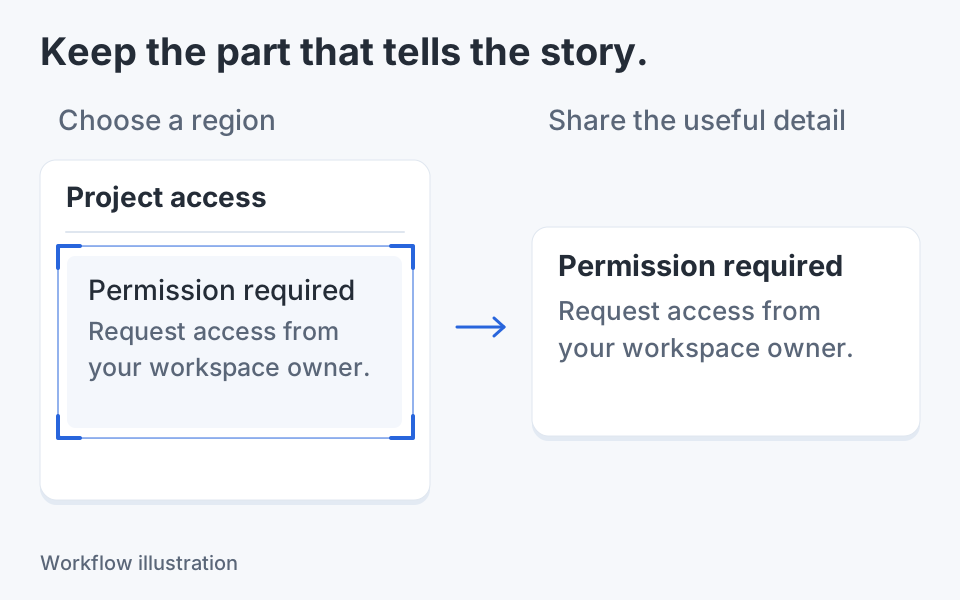
- In the editor, review the exact image area and remove private content. Choose Image actions → Upload to S3…; if asked, select the intended output area.
- Enter S3 endpoint (HTTPS), Region, Bucket, and optionally Folder prefix. Choose Use virtual-host bucket addressing only when it matches the provider's documented endpoint style.
- Enter the authorized credentials in their dedicated fields, including Session token (optional) when required. Use the remember option only if you want configuration and keys stored in Windows Credential Manager.
- For a private link, leave Public URL base empty and choose 1 hour, 24 hours, or 7 days. Temporary credentials or provider policy can shorten effective access.
- Use Test connection if useful, then explicitly press Upload. Wait for a confirmed result and use Copy link. Open the actual link in the intended recipient context before sending it through an approved channel.
Worked example: a private support handoff
Imagine a redacted settings capture for a support engineer. The organization has approved a private screenshot prefix and a narrowly scoped upload identity. Configure that destination, choose a one-hour private link, and upload only the reviewed image area.
Copy the resulting URL and test access without relying on an already signed-in storage-console session. Check that the image is the correct revision and that the text remains readable. Then send the link with a short description of the problem and its expiry, rather than sending the storage credentials.
This is an example procedure, not evidence that a live bucket or recipient was tested. If the support process needs access for several days, choose an appropriate approved lifetime or a different sharing system instead of repeatedly publishing fresh links without a retention plan.
Separate connection, write, and read permissions
Klips's connection test sends a signed HEAD Bucket request and does not upload an image. On AWS general-purpose buckets that check requires ListBucket. A restricted identity can therefore fail the test while still having permission to upload to its allowed object prefix.
The upload operation needs PutObject permission; serving a private download needs the appropriate read permission behind the generated link. A public URL needs an already working public-read path. These are separate capabilities, so diagnose the failing stage rather than broadening every permission until the error disappears.
Check the endpoint and signing region when the provider reports a region mismatch. Klips does not follow upload redirects to an unexpected destination. Do not solve a failed private read by disabling all public-access protection across the account.
Check the remote artifact and its lifetime
Inspect the uploaded image, not just the success message. Confirm the chosen region, redaction, dimensions, and destination are correct. An image uploaded to your bucket remains an external copy even when local capture and editing happened on the device.
An expired link does not automatically delete the underlying object. Use your storage retention policy and approved deletion workflow when the file should be removed. Equally, deleting a local history entry is not evidence that remote data disappeared. Check remote state when that outcome matters.
Keep secret keys out of images, logs, support messages, and example configurations. Credential Manager protects saved configuration locally; it does not make a presigned URL safe to publish or prevent an authorized recipient from downloading the image. Share only the reviewed output and the access needed for the task.

Keep the next screenshot in one workflow.
Capture the detail. Add a clear annotation. Copy text, measure spacing or keep a reference on screen.
Sources and review
Product details and external commands are referenced below. Klips publishes these guides and comparisons; worked examples and illustrations explain a workflow.