Screenshot guides
How to pick a color from an image on Windows
Open the image in a color picker, sample the pixel you need and copy its HEX or RGB value. Use a flat interior area for a solid color; an edge or shadow can give a different answer.

On this page
Choose the color you actually need
A screenshot contains the colors that were rendered, including shadows, transparency and antialiased text. If you want the fill of a blue button, sample inside the fill, away from its rounded edge. If you want the average appearance of a textured region, sample an area. Neither result automatically reveals a design token from the original application. For an available Windows screen picker, Microsoft documents PowerToys Color Picker; an image editor is useful when you want to inspect a saved capture.
Pixel value or area average?
| You need | Sample | Check |
|---|---|---|
| A flat button fill | One interior pixel | Nearby interior pixels should agree |
| A line or small icon | A magnified source pixel | Avoid the blended boundary |
| The overall color of a region | An area average | It can differ from every individual pixel |
| The original design color | The source design or CSS, when available | A screenshot can contain compositing changes |
Read a color in Klips
Open the original image in the editor, or capture the region you want to inspect. The following controls belong to the Color tool; they do not resize or modify the screenshot.
- Choose Color from the tool picker and move the pointer over the image. Use the loupe to target the pixel.
- Choose the required format in the Color controls above the canvas: HEX, RGB, HSL, RGBA, OKLCH or HEX without #.
- Click the pixel, or press Tab while the canvas has focus, to copy its current color. Paste the value into the destination field.
- For an average, drag an area with Color. A selection frame also supports an average through its Color action.
- To put the sample on the image, use Insert color label. Hover the source again if the previous sample is no longer current.
Worked example: carry a blue into a document
Suppose a test image contains a solid patch of #2661ED. Its RGB components are 38, 97 and 237. Those two notations describe the same component values; the RGB label is not a second color. Sample the center of the patch in HEX, then switch to RGB and sample the same spot. Paste the value into a document's custom-color field using the format that field accepts. This is a reference example, not a measured claim about a particular capture or display.
Check the copied result
Look at the actual pasted value before using it. Confirm that you copied the pixel value rather than an earlier clipboard item, that the destination accepts the # prefix and that a saved JPEG has not introduced small variations into a formerly flat fill. For a region average, keep the same rectangle when comparing two results. Including a white margin in one rectangle and excluding it from the other changes the question you are asking.
Why adjacent pixels sometimes disagree
A screenshot of small text contains blended edge pixels. A shadow or a partly transparent shape also changes the visible color. Zooming the editor helps you target the source, but it does not recover a hidden original color. Sample a flat area when you need a stable fill value. Use an original PNG when you have one, and keep the source unchanged while collecting samples. Color sampling is useful for matching an interface; it is not a calibration of a monitor, printer or photograph.
Keep the next step separate
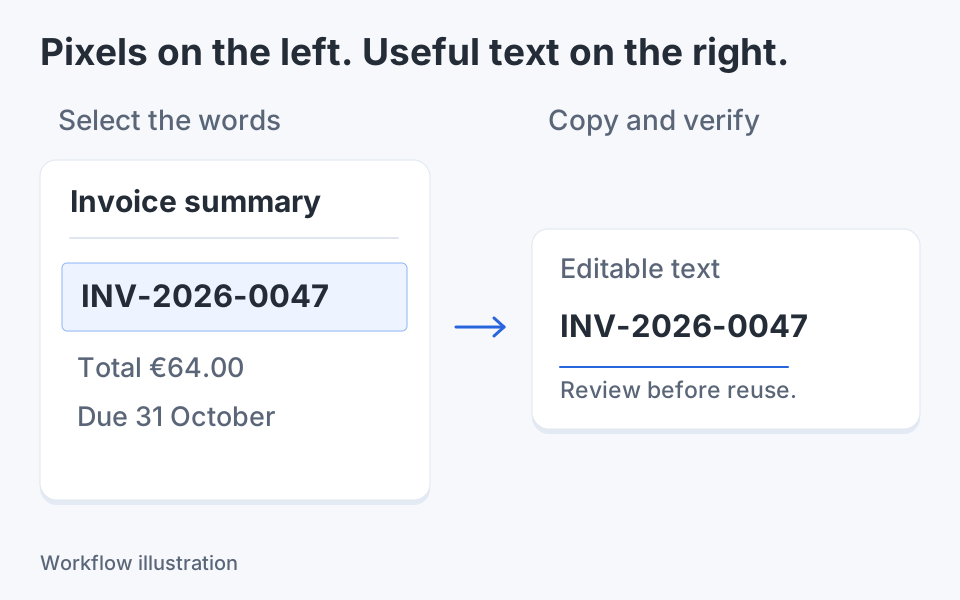
Picking a color, measuring contrast and extracting text are different jobs. Copy a color code when you need a fill value; use OCR when you need the words. If you add a color label for a design handoff, place it beside the subject rather than over the pixel you sampled. Check the finished image at its intended reading size before sending it. Tool shortcuts can be customized, and text fields keep their normal Tab behavior, so return focus to the canvas before using a canvas shortcut.

Keep the next screenshot in one workflow.
Capture the detail. Add a clear annotation. Copy text, measure spacing or keep a reference on screen.
Sources and review
Product details and external commands are referenced below. Klips publishes these guides and comparisons; worked examples and illustrations explain a workflow.