Guides
How to read a QR code from a screenshot
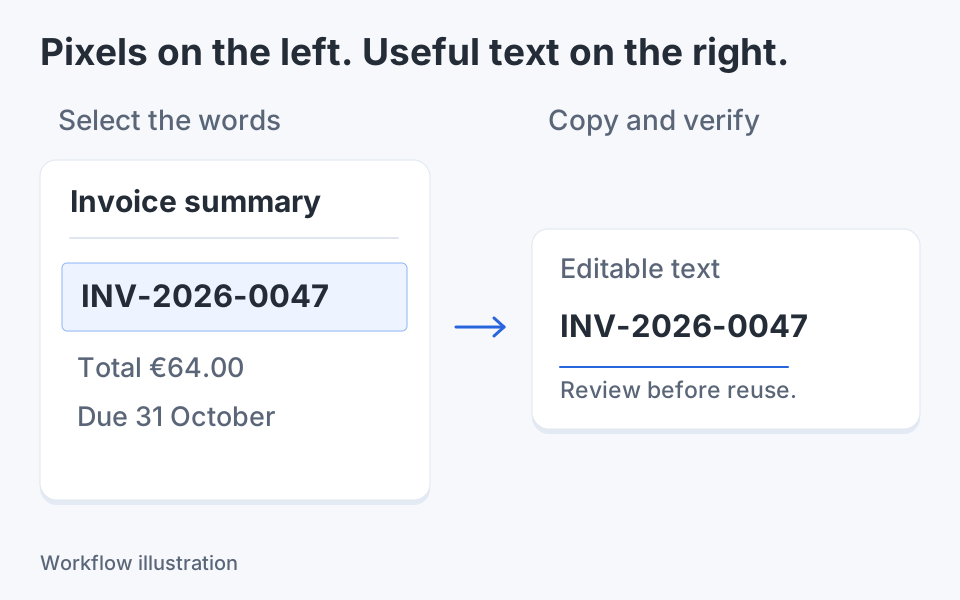
Open the screenshot and use Review text and QR to decode the image locally. Read the QR contents in the recognition window and copy them deliberately. Decoding a code is separate from visiting its destination; do not open a link just because the image contains it.

On this page
Keep the original code intact
Use the sharpest version you have: the original screenshot or downloaded image is preferable to a photo of the screen or a repeatedly compressed copy. Keep the square pattern and its surrounding blank border. Cropping tightly through that border, drawing an arrow across the code, or shrinking its modules can make an otherwise valid code difficult to read.
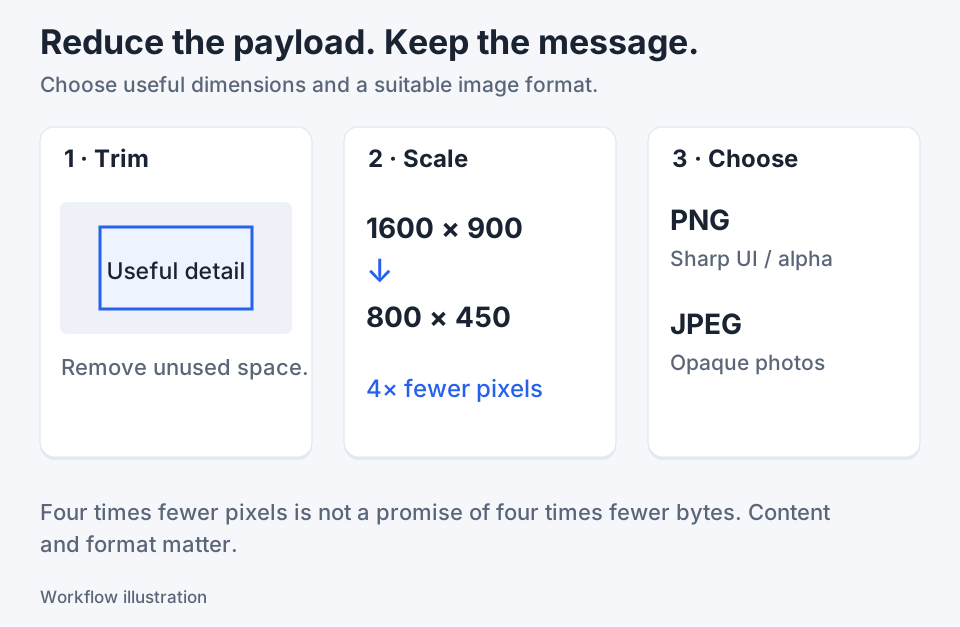
If a web page displays the code at a small size, obtain a larger original through a legitimate download or recapture it at a useful rendered size. Enlarging a blurred bitmap cannot recover missing square boundaries. A screenshot captures what was visible at that moment, so a time-sensitive code may already be expired by the time somebody uses its decoded contents.
QR decoding is not QR generation. It extracts a payload that already exists in the image; it does not create a replacement code, recover an obscured token, or prove the identity of the party that supplied it.
Choose the correct next action
| Situation | Next action | Check |
|---|---|---|
| A sharp code in a screenshot | Review text and QR | Read the decoded payload before copying |
| Several codes in one image | Review each decoded result | Associate the text with the intended code |
| No QR result appears | Return to the sharper original | Preserve the surrounding border and square modules |
| The payload is a URL | Inspect its domain before opening | Decoding does not establish trust |
| The payload is sensitive data | Keep it local unless sharing is intended | Clipboard and saved images are separate copies |
Decode and review in Klips
- Capture the code with the surrounding border, or open the original image in the editor. Avoid adding a highlight, blur, or decoration over the pattern.
- Choose Image actions → Review text and QR…. Wait for the recognition job to finish instead of repeatedly starting another request.
- Look for the QR codes result in the Text and QR recognition window. QR payloads are shown separately from ordinary OCR text; a visible URL recognized as printed text is not necessarily the code's decoded content.
- Use Copy QR contents when the displayed result is the one you intended. Paste it into a plain text field if you need to inspect a long payload completely.
- Decide the next step yourself. For a URL, check the destination and context before navigating. For other payloads, use the appropriate trusted application only after understanding what the copied text contains.
Worked example: a QR code in a support document
Suppose a colleague sends a screenshot of a fictional equipment setup sheet. The image includes a QR code beside a printed device name. Open the screenshot, decode it, and compare the payload with the expected setup domain before doing anything else.
A code might contain a URL with a long query string, while the printed text nearby contains a shorter marketing address. Keep the two results distinct. If the decoded host is unexpected, ask the sender through an existing trusted channel rather than treating the nearby logo as proof.
If there are two codes, inspect the image and results carefully before sending either one onward. Klips orders detected QR results by their image position, but a text list does not replace visually identifying which code belongs to which instruction. This example illustrates a review method; it is not a claim that a live device or account was tested.
When recognition does not find a code
Check whether the image actually contains a QR code rather than another barcode format or a decorative square. Klips's QR route is not a promise to decode every barcode family. Try an undamaged original and remove only irrelevant surrounding content, leaving the code's border intact.
For a tall capture, keep native source resolution rather than first reducing the whole page to a tiny overview. If the code remains unreadable, request the original link through a trusted route. Do not reconstruct missing modules, submit private screenshots to an arbitrary decoding website, or interpret the absence of a result as evidence that the code is harmless.

Keep the next screenshot in one workflow.
Capture the detail. Add a clear annotation. Copy text, measure spacing or keep a reference on screen.
Sources and review
Product details and external commands are referenced below. Klips publishes these guides and comparisons; worked examples and illustrations explain a workflow.