Guides
How to pin a screenshot always on top
Pin the captured image when you need a small reference above your working window. In Klips, a pin is a separate floating image, while Always on top keeps the editor itself above other windows. Choose the one that leaves enough room for the task underneath.

On this page
Choose a floating image or a whole window
A pinned screenshot is useful for comparing values, following a visual checklist, or keeping a design reference beside the interface you are changing. It is a snapshot: if the original application changes, the reference does not update automatically. Capture a new version when the state matters.
If you already have a suitable image viewer open, Microsoft's PowerToys Always On Top can keep that window above ordinary windows. Its default activation shortcut is Windows + Ctrl + T. That is a separate system utility, not the shortcut for making a Klips image pin, and other topmost windows can still compete for the foreground.
Pick the right reference mode
| Need | Use | Watch for |
|---|---|---|
| A compact screenshot above another app | Klips Pin action | The capture is static, not a live view |
| The entire editor and its tools | Always on top in Image actions | The larger window may cover the task |
| An existing app window above others | PowerToys Always On Top | PowerToys must be installed and running |
| A record you need after the session | Save a separate file | A visible pin is not a substitute for saving |
Pin and position the screenshot
- Capture the reference or open it in the editor. Remove unrelated content first; a small floating reference should show only what you need to consult.
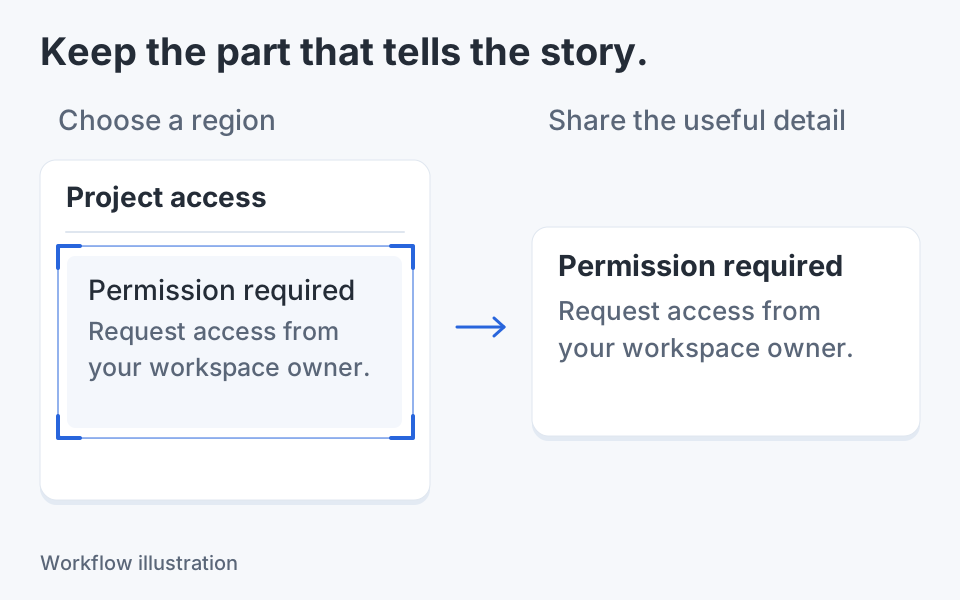
- Use the Pin action. If an output-area choice appears, choose the intended region rather than assuming the full document was used.
- Drag the floating image to a clear part of the screen. Keep important controls in the working application visible, and leave room for menus or dialogs that will open later.
- Use the pin's zoom controls or the mouse wheel to adjust its displayed size. Ctrl + mouse wheel adjusts opacity; the pin also provides explicit opacity controls.
- Copy the image when you need to reuse it, or use the edit control to return it to the editor. Close the pin when the reference is no longer needed. Save a file separately if you need a lasting record.
Worked example: comparing a form against a reference
Suppose you are checking a new shipping form against an approved screenshot. Capture just the address and delivery-option area, then pin it beside the current form. Start at full opacity so labels and selected states are easy to distinguish. Compare one region at a time, moving the reference rather than repeatedly switching windows.
If the reference covers a control you must click, move it or make it smaller. Lower opacity can help compare alignment, but it also mixes the appearance of two images. Return to full opacity before deciding whether a subtle color or text weight matches.
When the form changes, the pin still shows the old capture. Label the saved source with the revision or date if that distinction matters. A static reference is helpful precisely because it stays fixed, but it can also become stale.
Understand zoom, opacity, and copying
Pin zoom changes how large the reference appears on screen. It does not rewrite the original image's pixel dimensions. Opacity changes the floating image's appearance and is separate from its stored screenshot pixels; do not use a translucent view as evidence that the original colors changed.
The pin can copy its image without requiring you to close the reference first. Confirm a successful copy before pasting it into another application; a clipboard error is not a successful handoff. If you choose Edit, the pin's captured image opens in the editor and that pin closes, so plan around the reference moving to a different window.
Several pins can be useful, but too many make it hard to remember which version each one represents. Keep one reference per active comparison and remove obsolete ones as the task changes.
Check the actual working setup
Click the application you are working in and confirm the reference remains visible. Open a menu or dialog and make sure the pin does not obscure the action you need. Topmost ordering has limits when another application also uses topmost windows; do not infer that the image was lost simply because an elevated or special-purpose window covers it.
If a screenshot unexpectedly appears in your next capture, move or close the pin before recapturing the desktop. Review the new image rather than assuming capture excludes every floating window. Keep private references out of sight when screen sharing.
For keyboard-driven work, keep the editor's documented shortcuts nearby and use the explicit close or edit controls when the floating image no longer fits the workflow. Pinning should reduce context switching, not add another window that you must continually manage.

Keep the next screenshot in one workflow.
Capture the detail. Add a clear annotation. Copy text, measure spacing or keep a reference on screen.
Sources and review
Product details and external commands are referenced below. Klips publishes these guides and comparisons; worked examples and illustrations explain a workflow.